Requirements and Guidelines for Uploading 3D Models
Make sure your 3D model meets these guidelines before uploading it to Vizbl
File formats
The following 3D model formats are supported:
- FBX (.fbx)
- OBJ (.obj)
- GLB (.glb)
- USDZ (.usdz)
1. FBX
Two upload methods are supported.
1.1 FBX with embedded textures
- All textures must be embedded directly into the
.fbxfile. - No additional files are required.
1.2 FBX with external textures
- The model and all associated textures must be packaged in a single
.ziparchive. - The archive must include the
.fbxfile and all textures used by the model (albedo/base color, normal, roughness, metallic, ORM, etc.). - Texture paths inside the FBX file must be relative.
- Textures must be located either in the root of the archive or in its subfolders.
2. OBJ
- Uploading as a
.ziparchive is required. - The archive must include the
.objfile, the.mtlfile, and all textures used by the model. - All texture paths in the
.mtlfile must be relative and point to files contained within the archive. - Both standard PBR textures and classic MTL textures are supported.
3. GLB
- The model must be uploaded as a single
.glbfile. - All resources, including geometry, materials, and textures, must be embedded in the file.
- Materials must use the PBR (Metallic-Roughness) workflow.
- Ambient or environment lighting is supported and used when rendering the model.
- External files or archives are not allowed.
4. USDZ
- The model must be uploaded as a single
.usdzfile. - All textures and materials must be embedded in the file.
- This format is intended for AR and iOS devices.
- External resource references are not allowed.
5. General Requirements
- Supported texture formats: PNG, JPG, JPEG.
- Recommended color space: Albedo / Base Color — sRGB Normal, Roughness, Metallic, ORM — Linear.
- Geometry must be properly triangulated.
- Units of measurement: meters.
- Only .zip archives are accepted.
Model Requirements:
Polygons
Limitations on the number of polygons: 500000 for all objects in the scene.
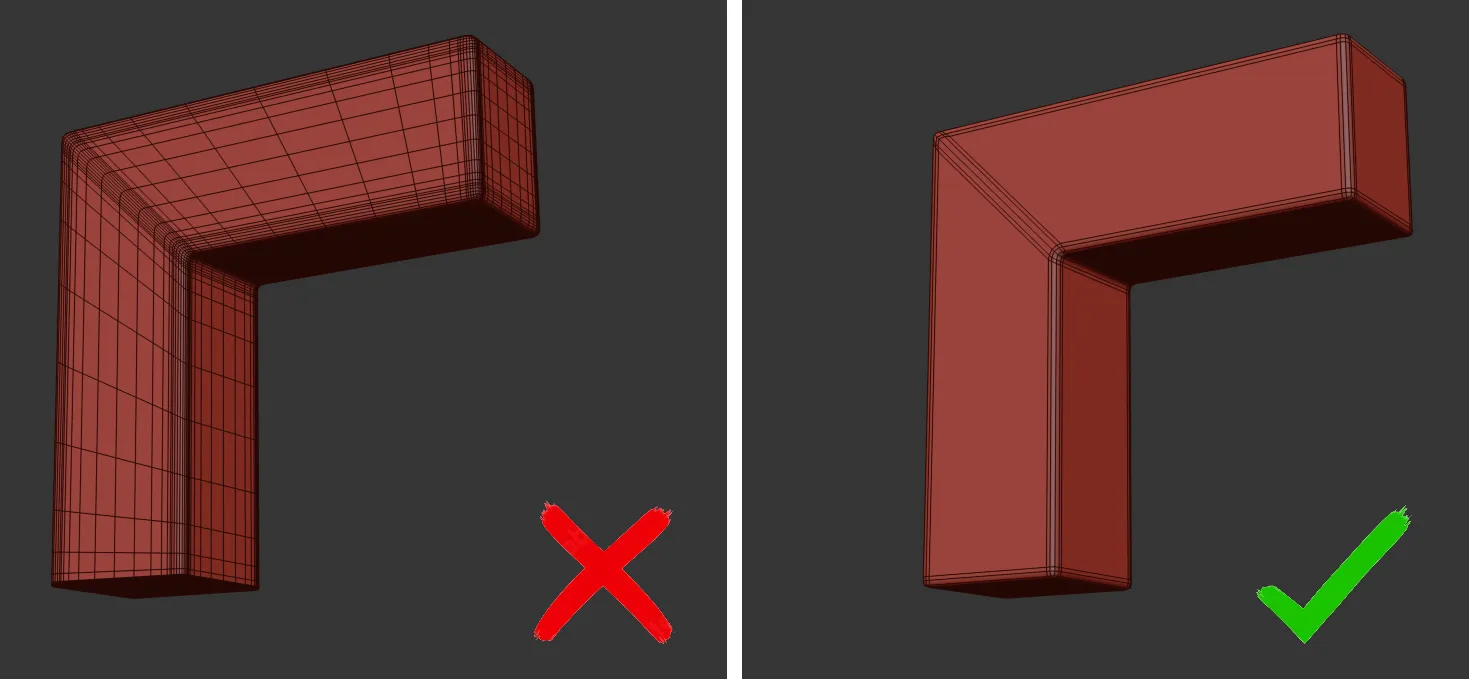
Since the 3d model is processed by the resources of the device on which it is viewed, you should optimize your 3d model for faster loading and smoother viewing. The smaller the file size, the better.
Do not use Turbosmooth or OpenSubDiv on simple hard-surface shapes. This will create unnecessary unaffected geometry that will increase the file size. Instead, use the Chamfer (Bevel) modifier with supporting edges to round corners.
Dimensions
In order to display correctly in AR, your model must be made in the same size as in real life. Use meters as Scale Units in 3d modeling software.
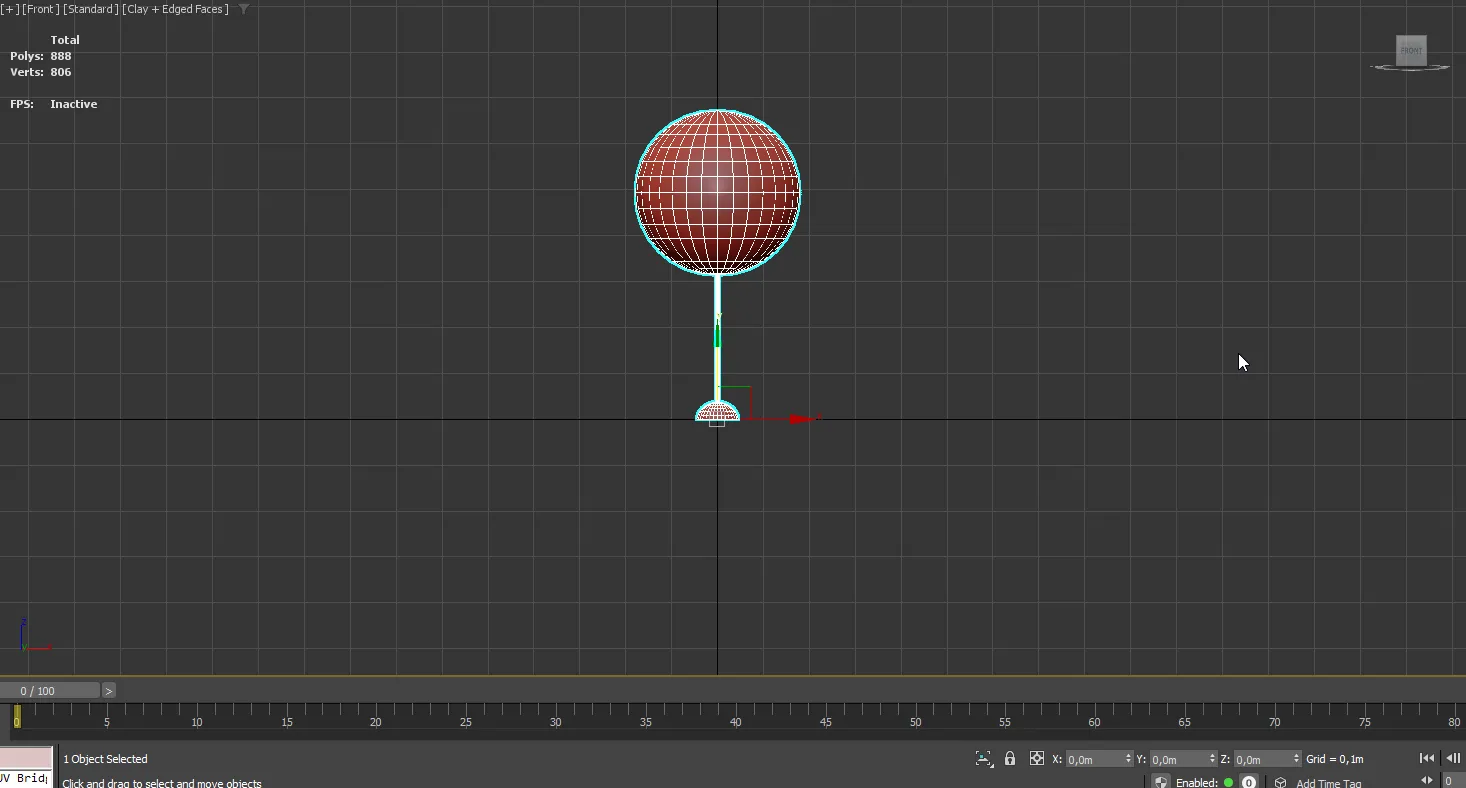
Coordinates
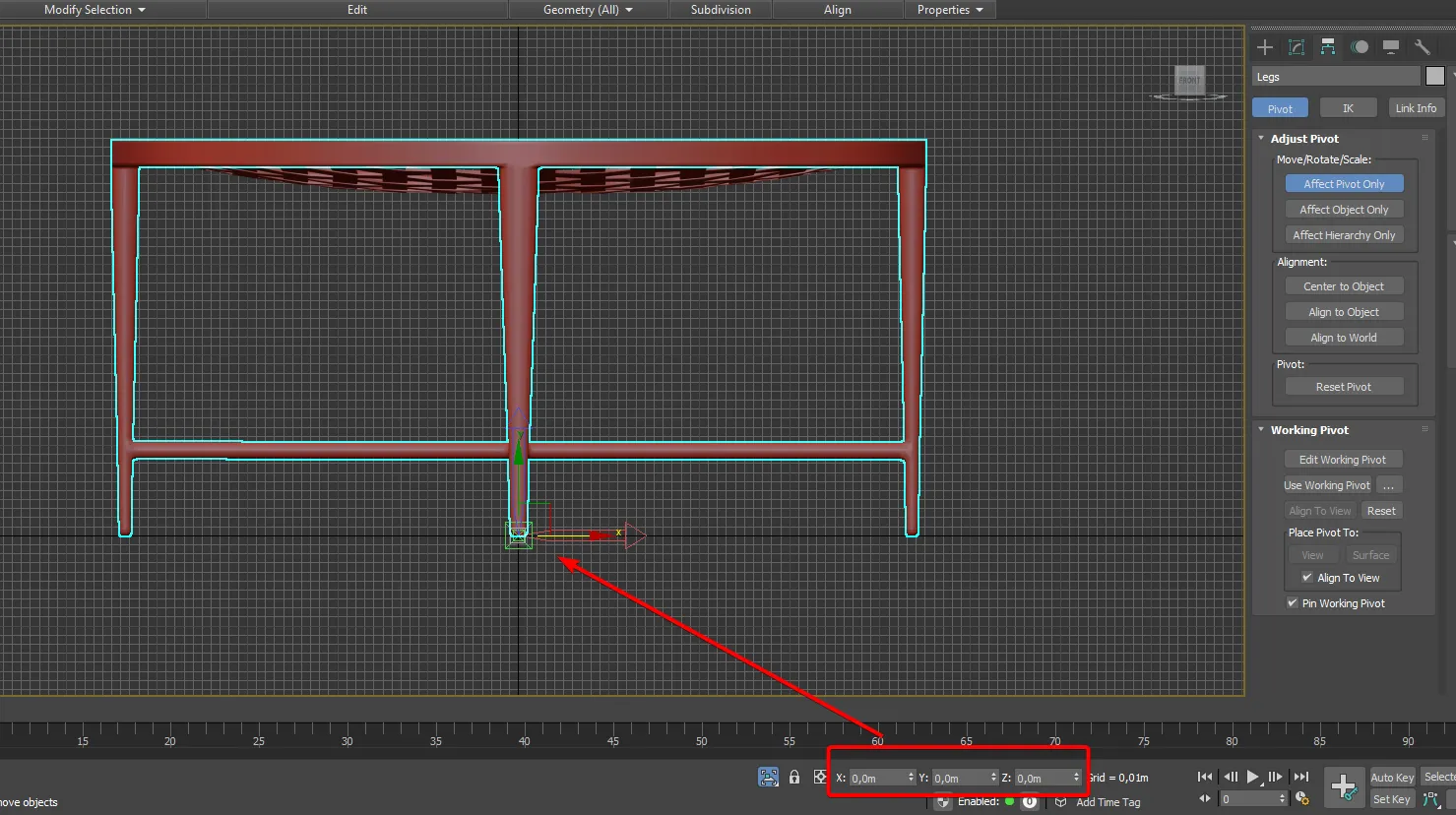
Your model must be centered in the X and Y coordinates. On the Z axis, your model should not go below 0. The Pivot point of each object in the model should be at position 0;0;0, the Pivot point angles should also be 0;0;0.
Types of placement
There are 4 types of object placement: All, Floor, Wall, Ceiling.
For “All” and “Floor”, apply the rules described above.
When making a model for “Wall” type (paintings, mirrors, etc.), it is necessary to place the model “standing” on the bottom edge, so that the model does not go below 0 on Z and Y axes. Pivot point still in 0;0;0.
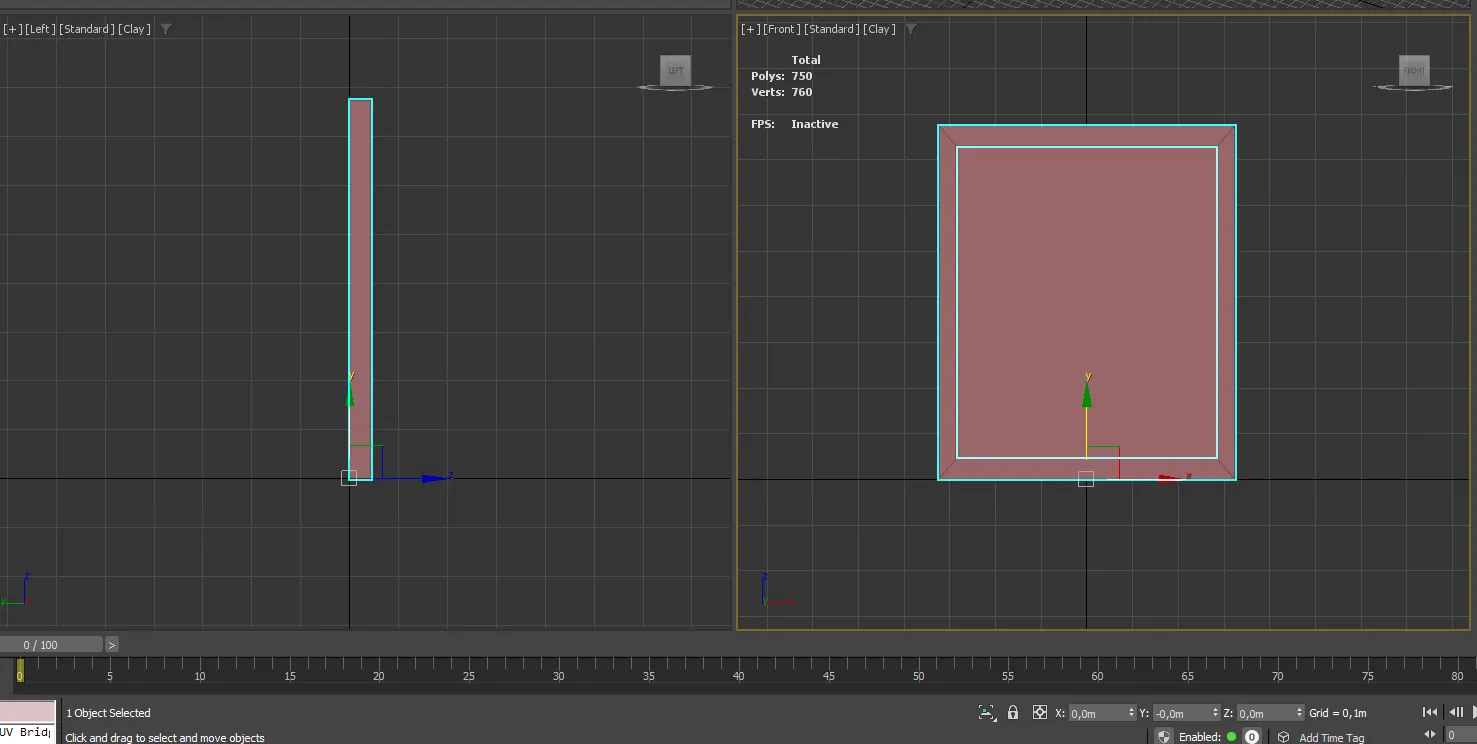
For “Ceiling” type models, you need to place your model the same as on “Floor” type but the model should be upside down. Pivot point still in 0;0;0
UV Mapping
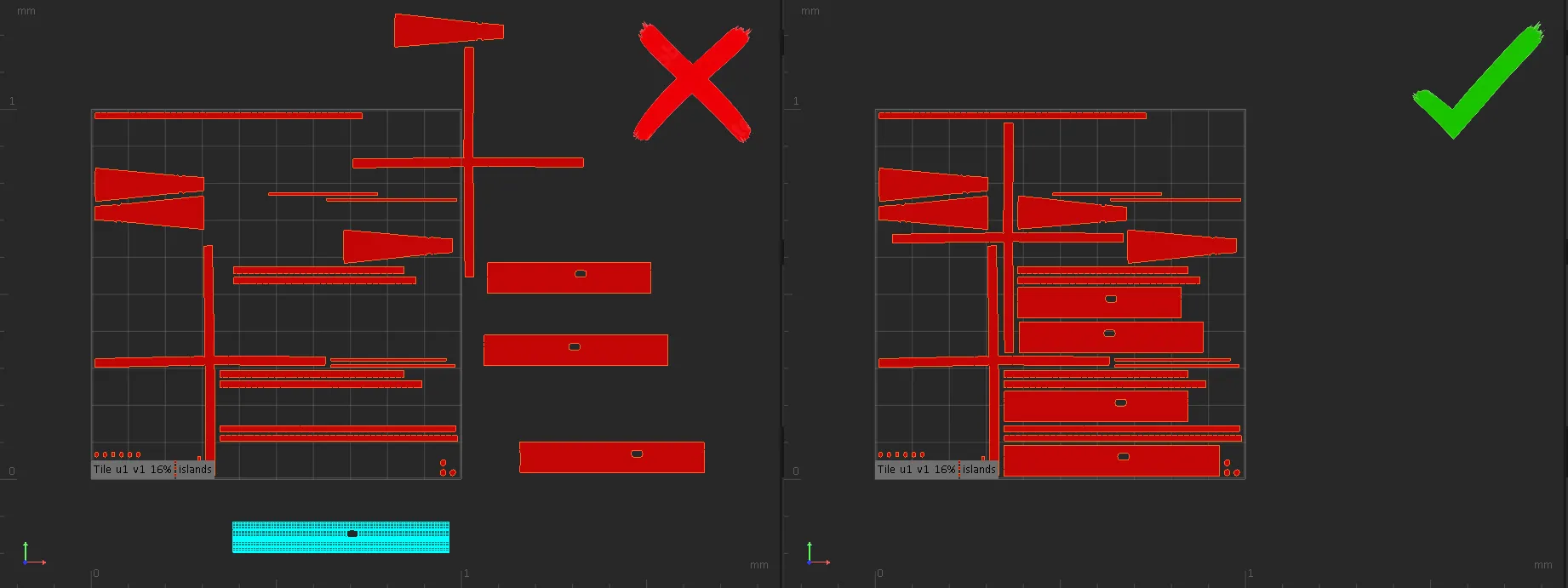
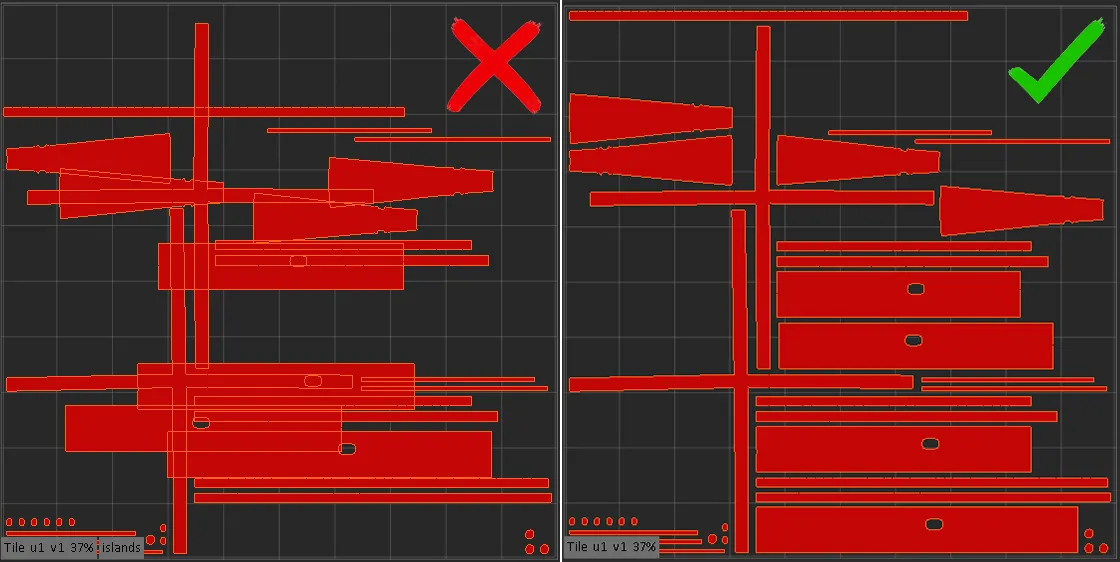
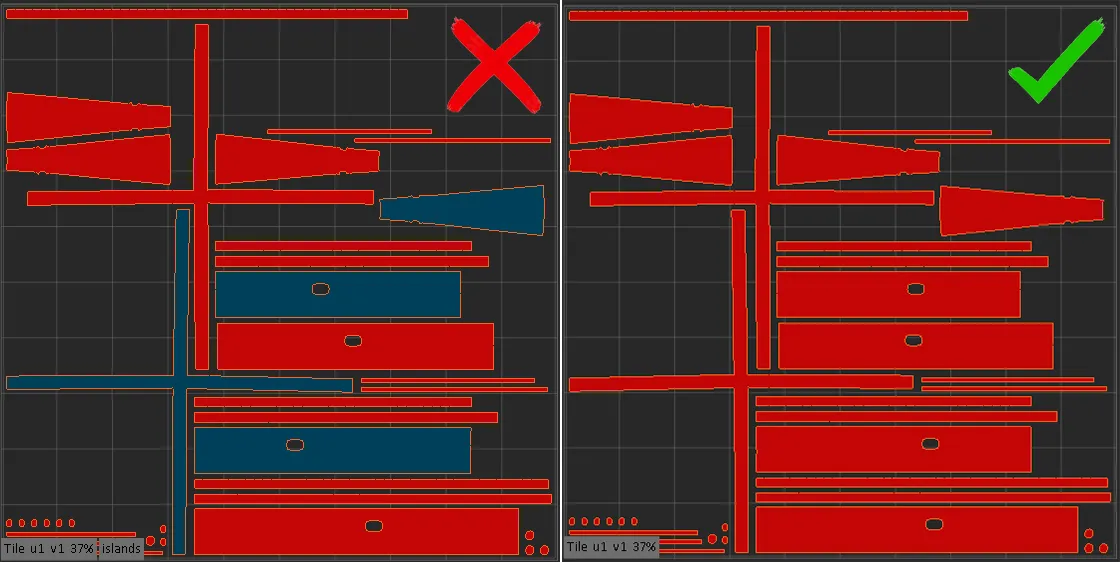
Each object in the model must have the correct UV. This means that for each object’s UV:
All UV-shells must be placed in 1 UDIM
There should be no overlapping UV-shells.
There should be no flipped UV-shells
All UV-shells should have approximately the same texel density.
Textures Requirements:
A set of 3 textures is required for each FBX file you upload:
DIFFUSE - In most cases, the JPEG format should be used. If the object has transparency/semi-transparency - use PNG format with required transparency value in alpha channel.
NORMAL - JPEG format should be used. For correct display of bumps use DirectX Normal Map Format.
ORM (OcclusionRougnessMetalness) - JPEG format should be used. Texture including 3 different maps in different channels of RGB image (R - Occlusion, G - Roughness, B - Metalness).
All models should be in aspect ratio 1:1 and not more than 2048x2048 px
Preview Requirements:
The image size should be more than 1000 px on each side. The aspect ratio is 1:1.
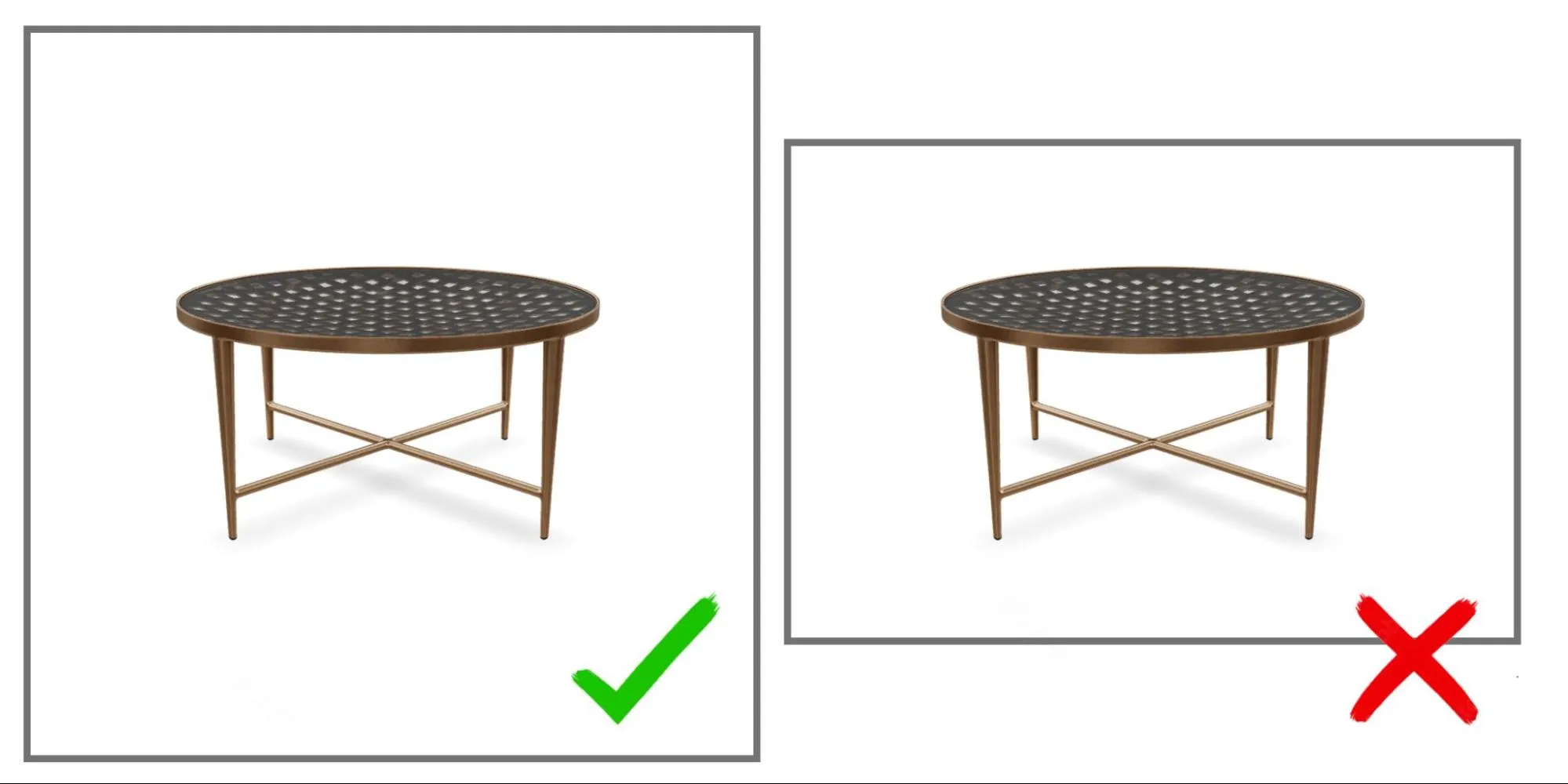
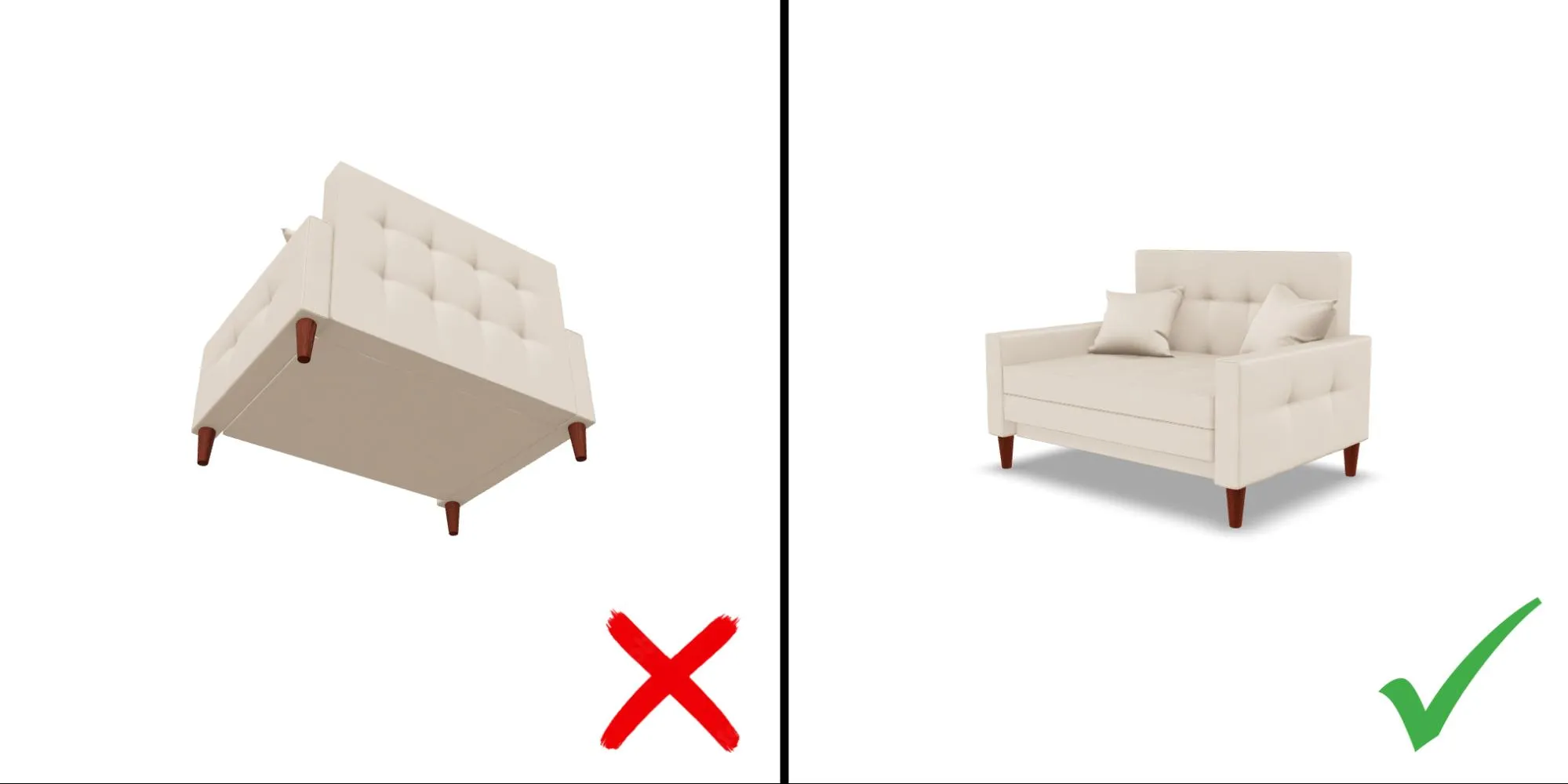
In the preview, the model should look the same as in the 3D viewer, so we recommend using a screenshot taken in the VIZBL 3D viewer as the preview image.
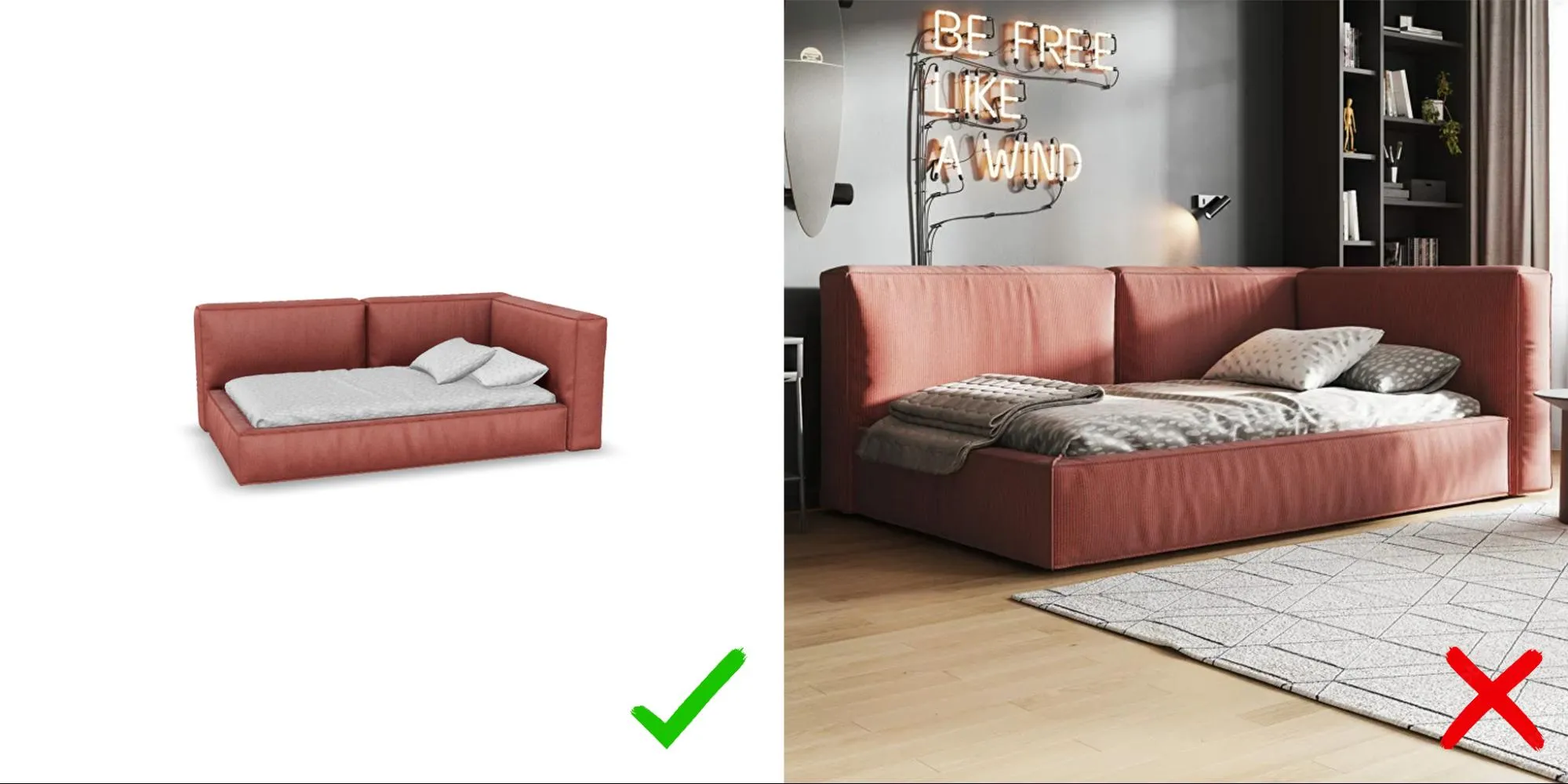
Choose an angle that shows the product favorably. Do not use odd angles that distort proportions and make it difficult to appreciate the advantages of the product.