Learn what One-Click AR is and how it works
Launches AR view instantly on tap. Available on the Basic, Pro, and Pro Plus plans.
1. On your website, add this script before the </header> tag or inside <head>:
<script type="module" src="https://viewer.vizbl.com/native_button/script.js" async defer></script>
<script>
  window.onload = function() {
    window.vizbl.initNativeButton('vizbl_native_button')
  }
</script>
2. Add a link that will open the AR view when tapped:
<a
  rel="ar"
  href="#"
  class="vizbl_native_button"
  data-object-tinuuid="example-tinuuid-12345"
  data-object-hid="example-hid-67890">
  <img style="display: none" />
</a>
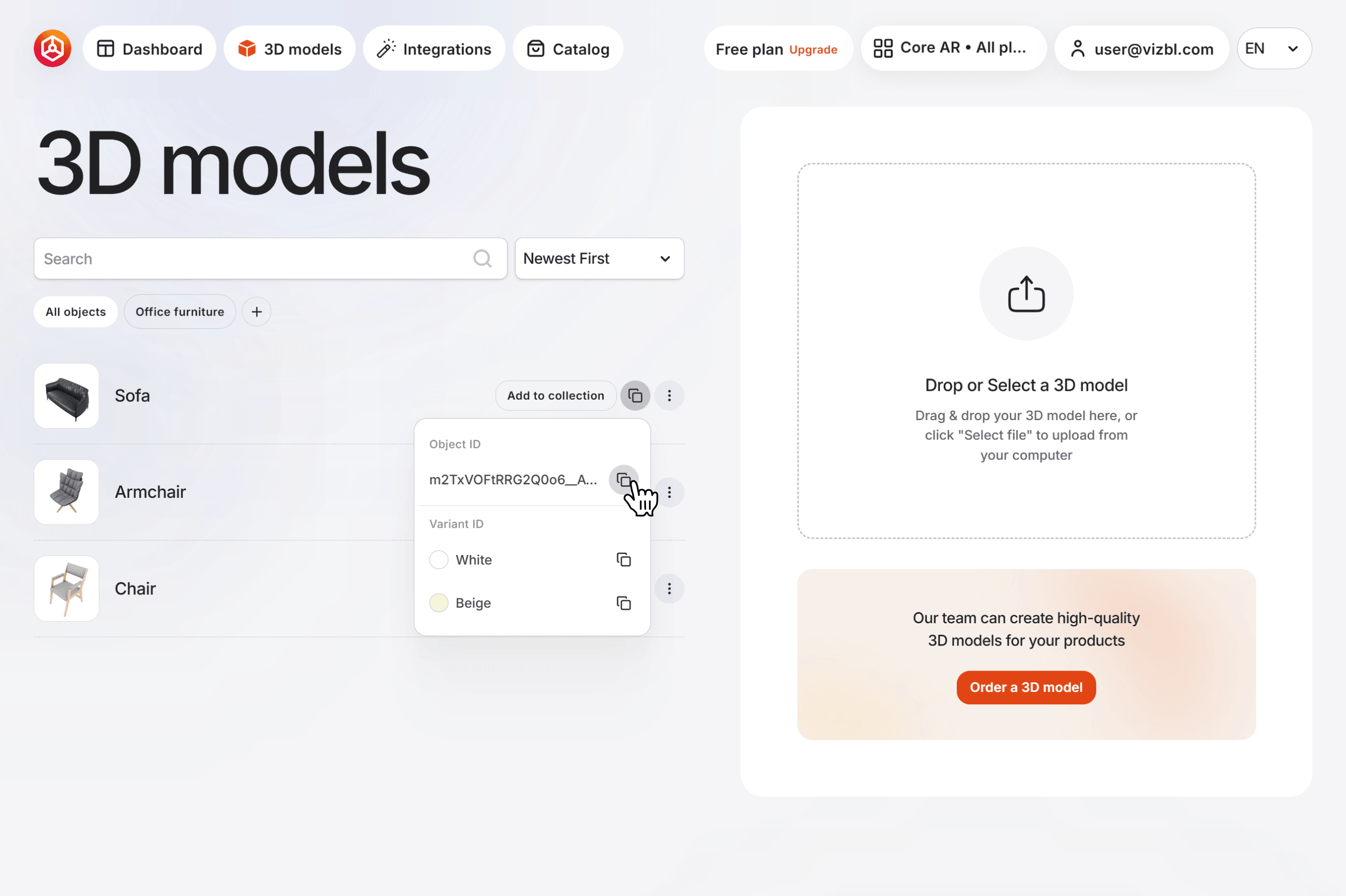
example-tinuuid-12345 — your object's ID. To get it, click the copy icon on any model in the list, then click the same icon next to Object ID in the dropdown.
example-hid-67890 — the color variant of the object. This field is optional — you can leave it empty or remove it entirely. To get the HID, open the same dropdown and select Variant ID instead of Object ID.
A configured element might look like this:
<a  rel="ar"  href="#"  class="vizbl_native_button"  data-object-tinuuid="K7CCtKS9Qaer7fQW-6IN1Q"  data-object-hid=" ">
  <img style="display: none" />
  Open AR
</a>


