Learn how to add the Wall Art widget to your website — from adding your domain to configuring the element parameters.
1. Go to your dashboard and select the Wall Art • All Platforms workspace.
2. Add your domain — enter your website URL in the field. For example: web-site.shop
3. A script and element parameters will appear on the page. Copy both and add them to your website.
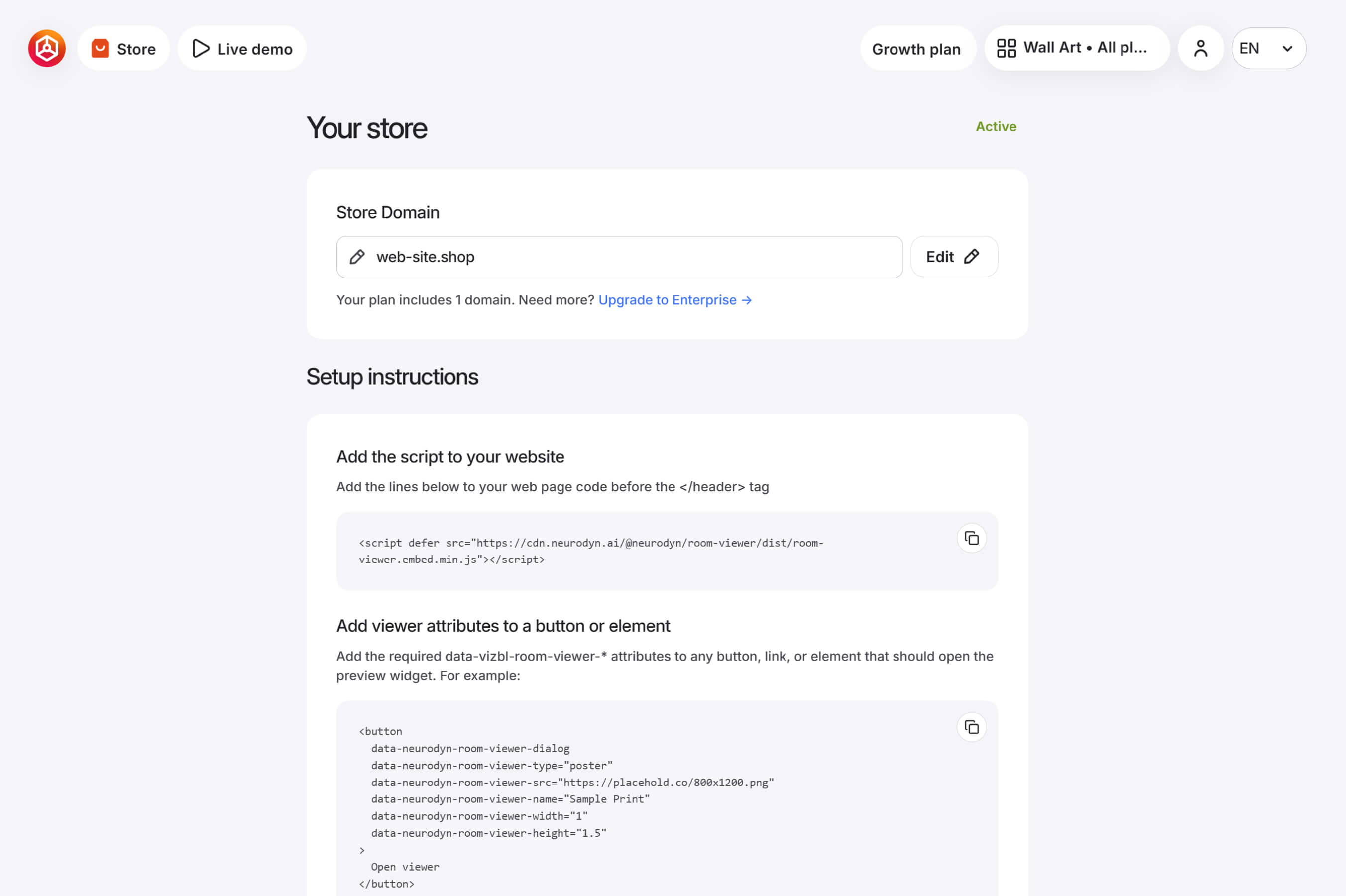
Script
This script enables Vizbl Wall Art on your site. Add it to your website before the </header> tag:
<script defer src="https://cdn.neurodyn.ai/@neurodyn/room-viewer/dist/room-viewer.embed.min.js"></script>
Element parameters
Add these parameters to the button or link that triggers the Wall Art preview:
<button  type="button"
  data-neurodyn-room-viewer-dialog
  data-neurodyn-room-viewer-type="poster"
  data-neurodyn-room-viewer-api-key="pk_test_d0CVMVA8rYgM9bFDlYhaJK_LUAoJFo-M"
  data-neurodyn-room-viewer-src="https://placehold.co/800x1200.png"
  data-neurodyn-room-viewer-width="1"
  data-neurodyn-room-viewer-height="1.5"
  data-neurodyn-room-viewer-name="Sample Print"
  data-neurodyn-room-viewer-language="en">

  Preview in Room

</button>
You only need to edit four parameters:
data-neurodyn-room-viewer-src — URL of your product image.data-neurodyn-room-viewer-name — your product name.data-neurodyn-room-viewer-width — actual width in meters.data-neurodyn-room-viewer-height — actual height in meters.If your store lists dimensions in millimeters or centimeters, convert them to meters. For example, a 700×1200mm print becomes:
data-neurodyn-room-viewer-width="0.7"data-neurodyn-room-viewer-height="1.2"Width and height should reflect the image size only, not including the frame.
Do not edit or remove these parameters — the widget won't launch if they're misconfigured:
data-neurodyn-room-viewer-dialog data-neurodyn-room-viewer-type="poster" Optional parameters
These are not required — the widget works without them:
data-neurodyn-room-viewer-language — interface language. Available options: en, ru.data-neurodyn-room-viewer-dimension-unit — units shown to the customer. Defaults to inches. Available options: m, cm, in.A configured element looks like this:
<button type="button"
  data-neurodyn-room-viewer-dialog
  data-neurodyn-room-viewer-type="poster"
  data-neurodyn-room-viewer-api-key="pk_test_d0CVMVA8rYgM9bFDlYhaJK_LUAoJFo-M"
  data-neurodyn-room-viewer-src="https://web-site.shop/products/images/poster.png"
  data-neurodyn-room-viewer-width="0.5"
  data-neurodyn-room-viewer-height="2"
  data-neurodyn-room-viewer-name="Sample Print"
  data-neurodyn-room-viewer-language="en">
  Preview in Room
</button> 


