Read how to set up the Wall Art and Shopify integration
Go to your dashboard and click Settings in the top-right corner. The Wall Art global settings will open.
These settings apply to all active products at once and cannot be configured individually per product.
Units of measurement — sets the units used for your artwork or poster dimensions. Choose between inches and centimeters.
Try-on image — sets which product image Wall Art uses for AR preview. Choose a position in your Shopify product gallery — the image in that slot will be used for the preview.

Background removal before try-on — removes the white border from the image if there is one. This happens automatically when the customer launches the preview — no need to re-upload any images.
For tips on choosing the right image, see this guide.
Product variants — specify whether your store offers multiple size options for your artwork or poster:
Product width and height — defines how dimensions are stored in Shopify: as separate width and height fields, or as a single combined field.
Select the field that stores product width and height — choose which specific field contains your dimensions. The list is built from the fields available in your store.
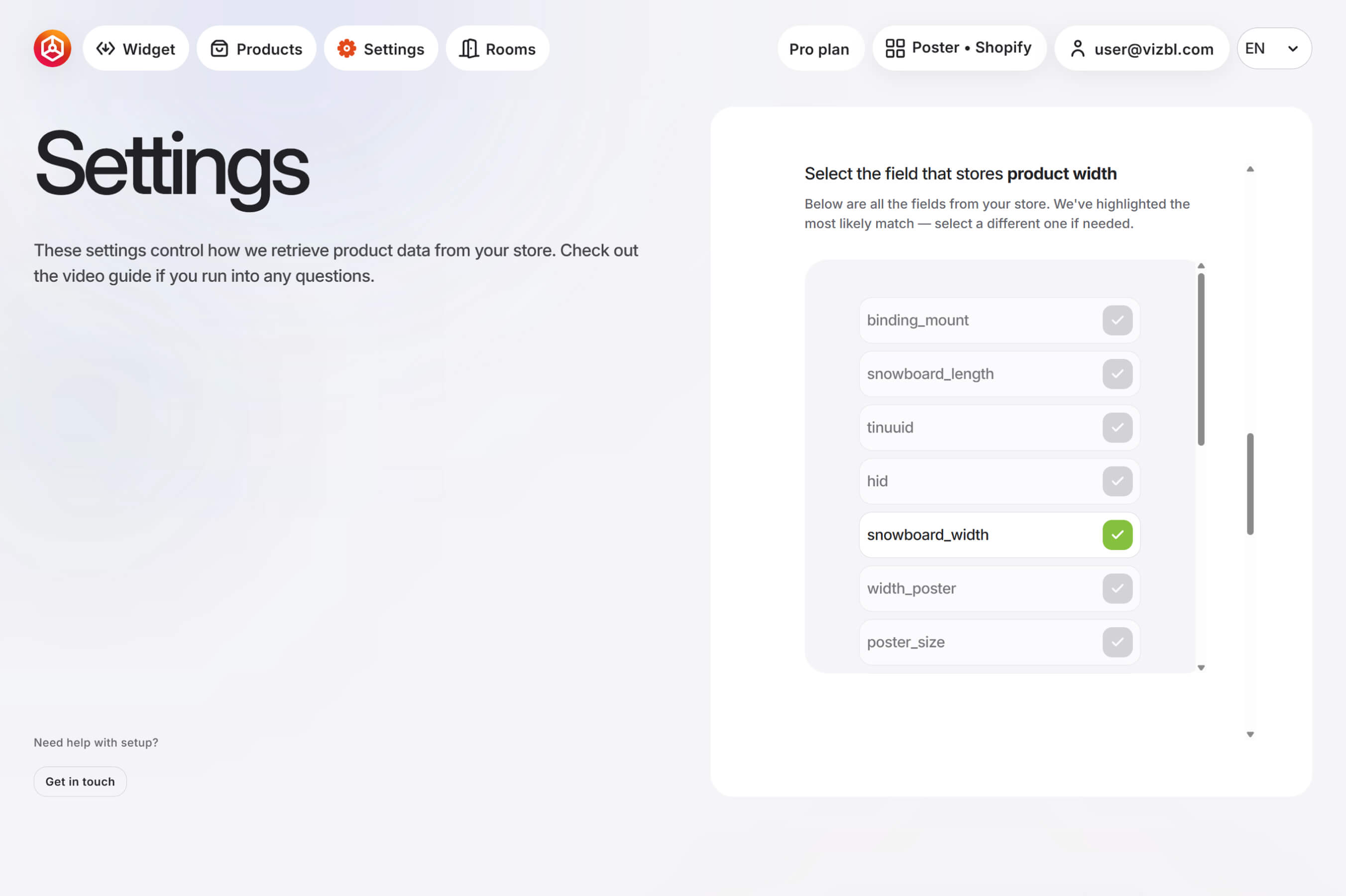
Dimensions order — sets the order in which width and height are entered in Shopify.
Widget button placement — sets the position of the widget button on the product card.
For details on enabling and customizing the widget button, see the widget button guide.


