
Uploading rugs in Vizbl
Learn how to upload rugs to Vizbl, set dimensions and shape, and add size variants.
1. Open your Rugs dashboard.
2. Click Rugs in the left panel, then Add rug in the top-right corner.

3. Upload a top-down photo of the rug — any angle will distort how it renders. Click What photos work to see examples.
4. Give it a name, paste a link to the product page, enter the width and length in centimeters, and pick a shape: rectangular, square, round, or oval. Optionally, add a link to a specific variant.
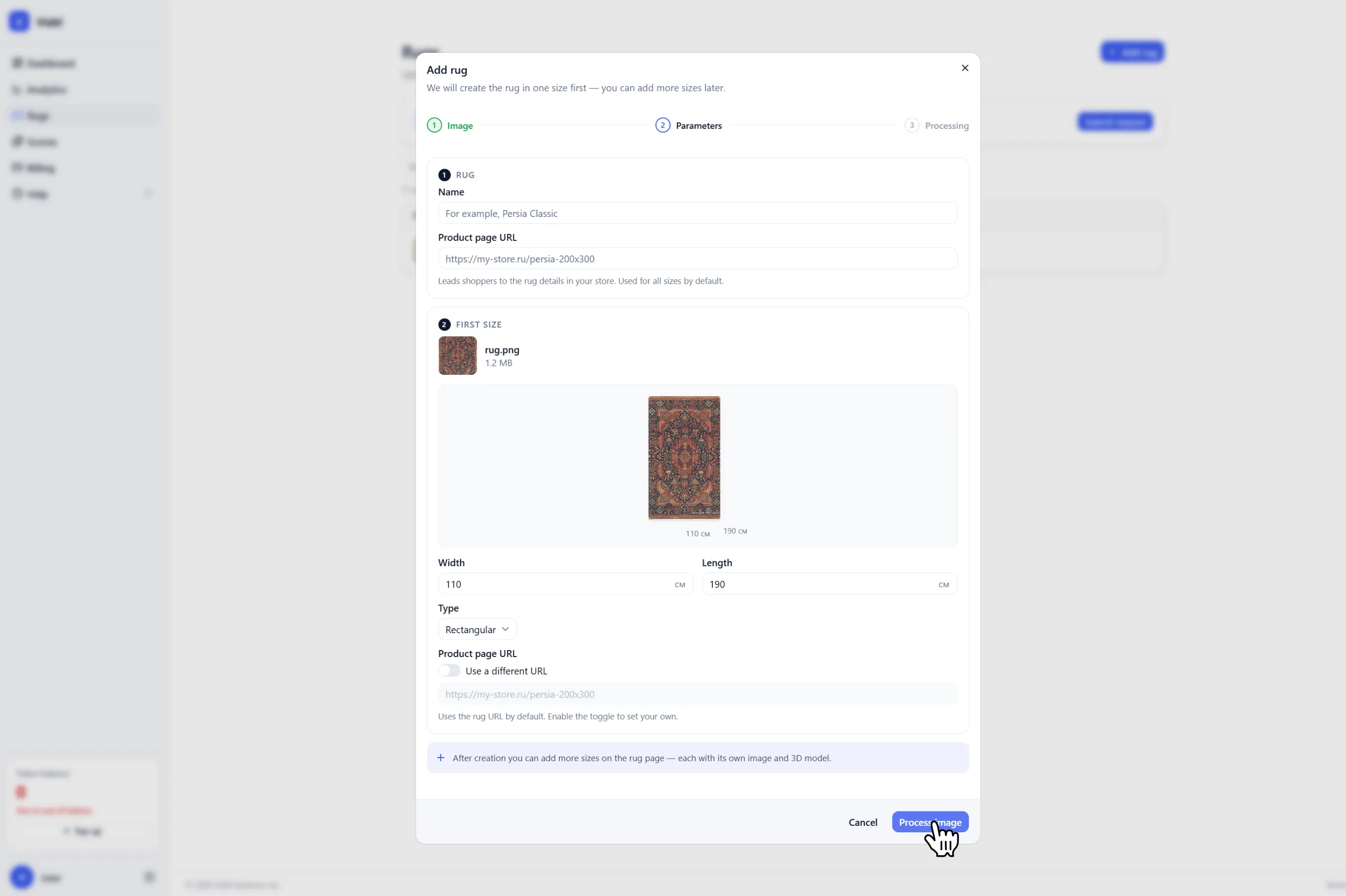
5. Click Process and wait for it to finish. Then click Get integration code to grab the script and code for your site. See the separate guide for setup instructions.
Got a large catalog? Click Submit a request and we’ll handle the upload for you.
Adding a size variant
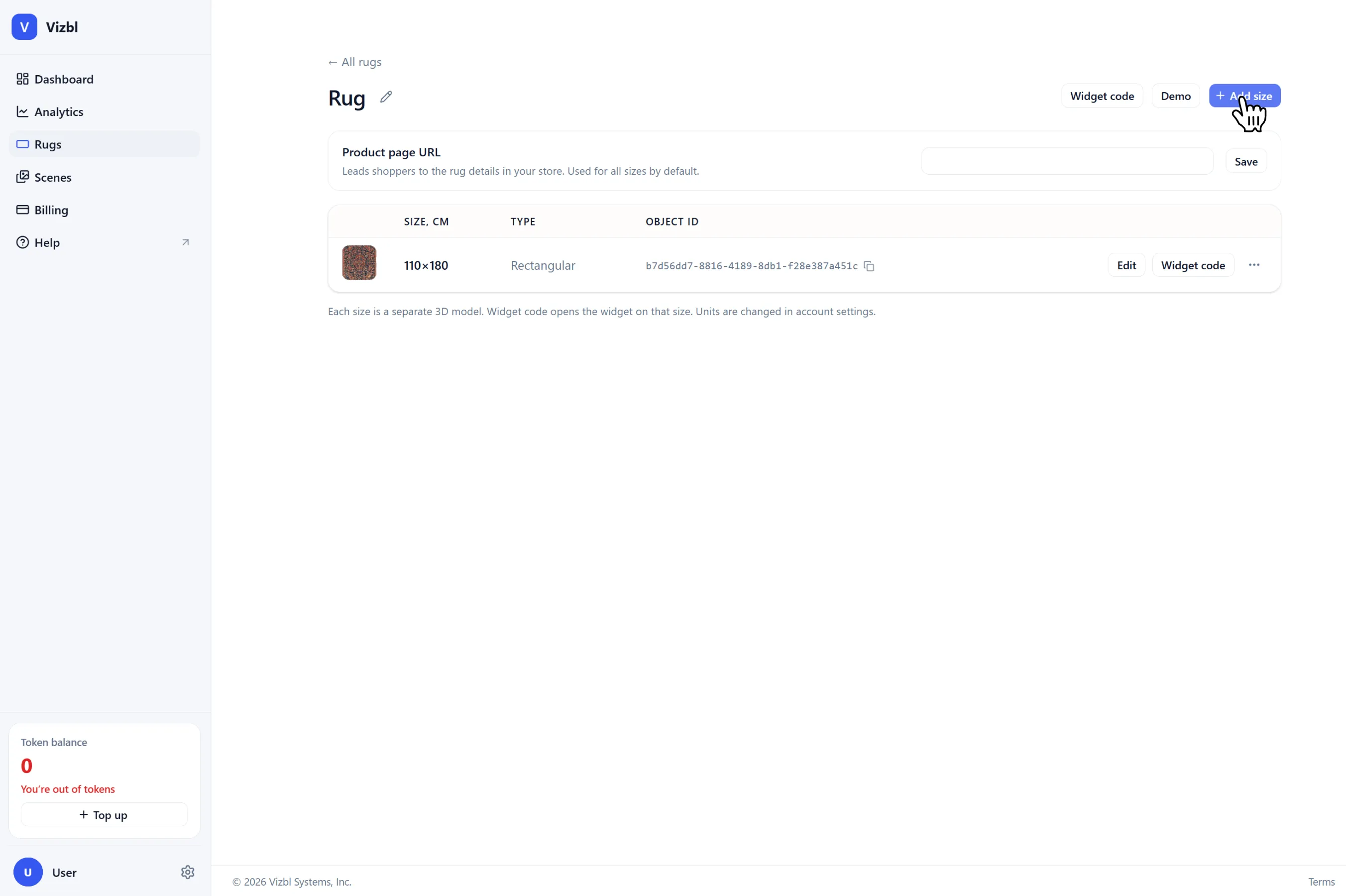
1. Click Rugs in the left panel and select the rug you want to update.
2. Click Add size in the top-right corner.
3. Upload a new image or reuse the one from an existing size.
4. The rest follows the same steps as a standard upload.
Get help in our Discord
Join our Discord to ask questions about these instructions or get technical support. If something isn’t working, open a ticket and our team will investigate.