
Adding a Rugs integration to your website
Learn how to get the widget code for any rug variant and add the Rugs integration to your website.
1. Open your Rugs dashboard.
2. Click Rugs in the left panel, select a rug from the list, then click on a variant. See the upload guide if you haven’t added any rugs yet.
3. Click Widget code next to the variant. You’ll get a script and element code.
If you haven’t gone through onboarding yet, you’ll need to add your domain first — enter your site address as shop.com, no protocol, www, or path. The integration won’t work otherwise.
You can update or remove your domain at any time. See the separate guide for details.
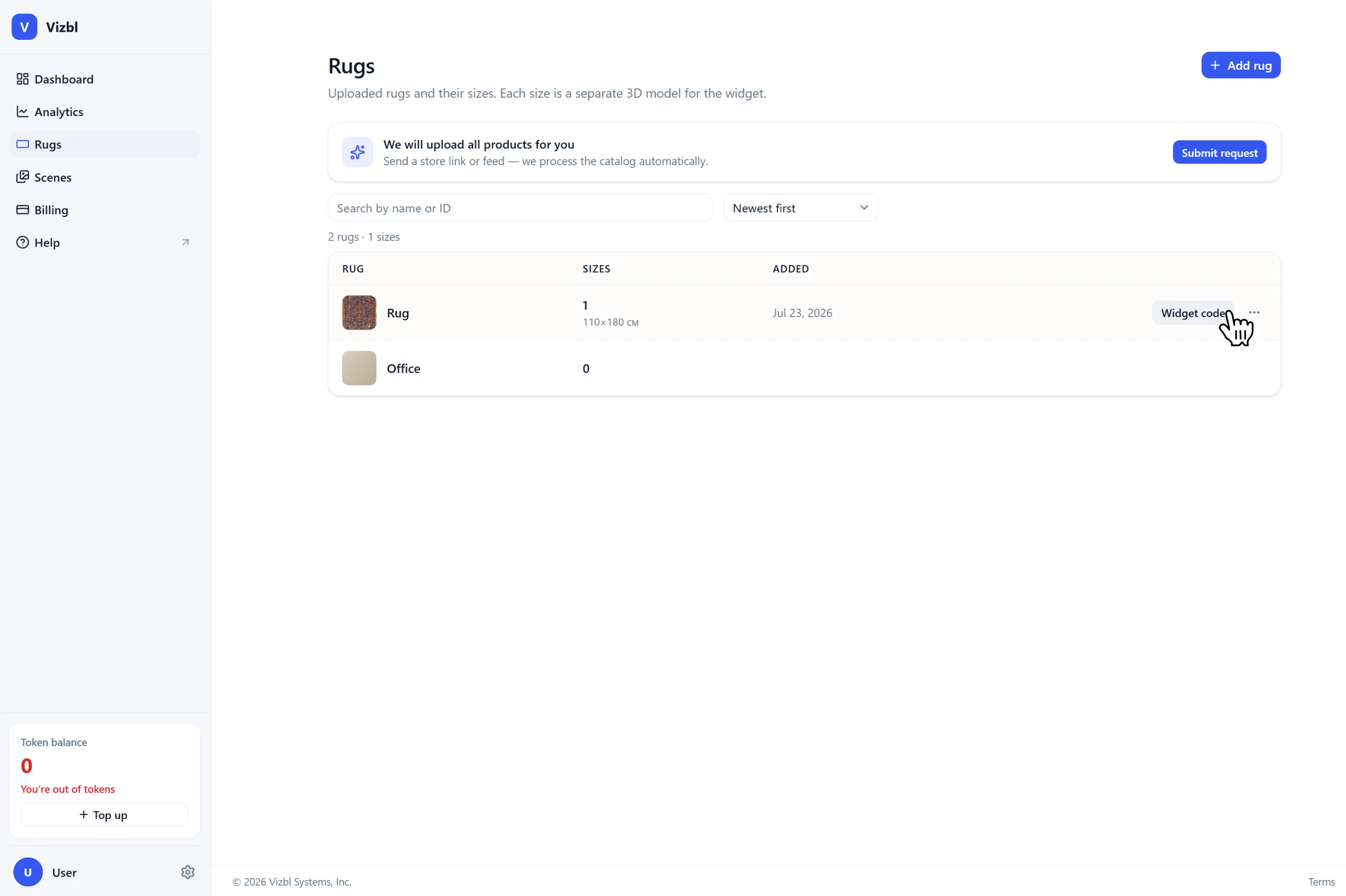
You can also grab the code from the dashboard — click Integration code and pick the variant you need.
Script
Add this to your site’s <head> once — it’s what makes the widget run:
On a CMS like WordPress, add it to your site template.
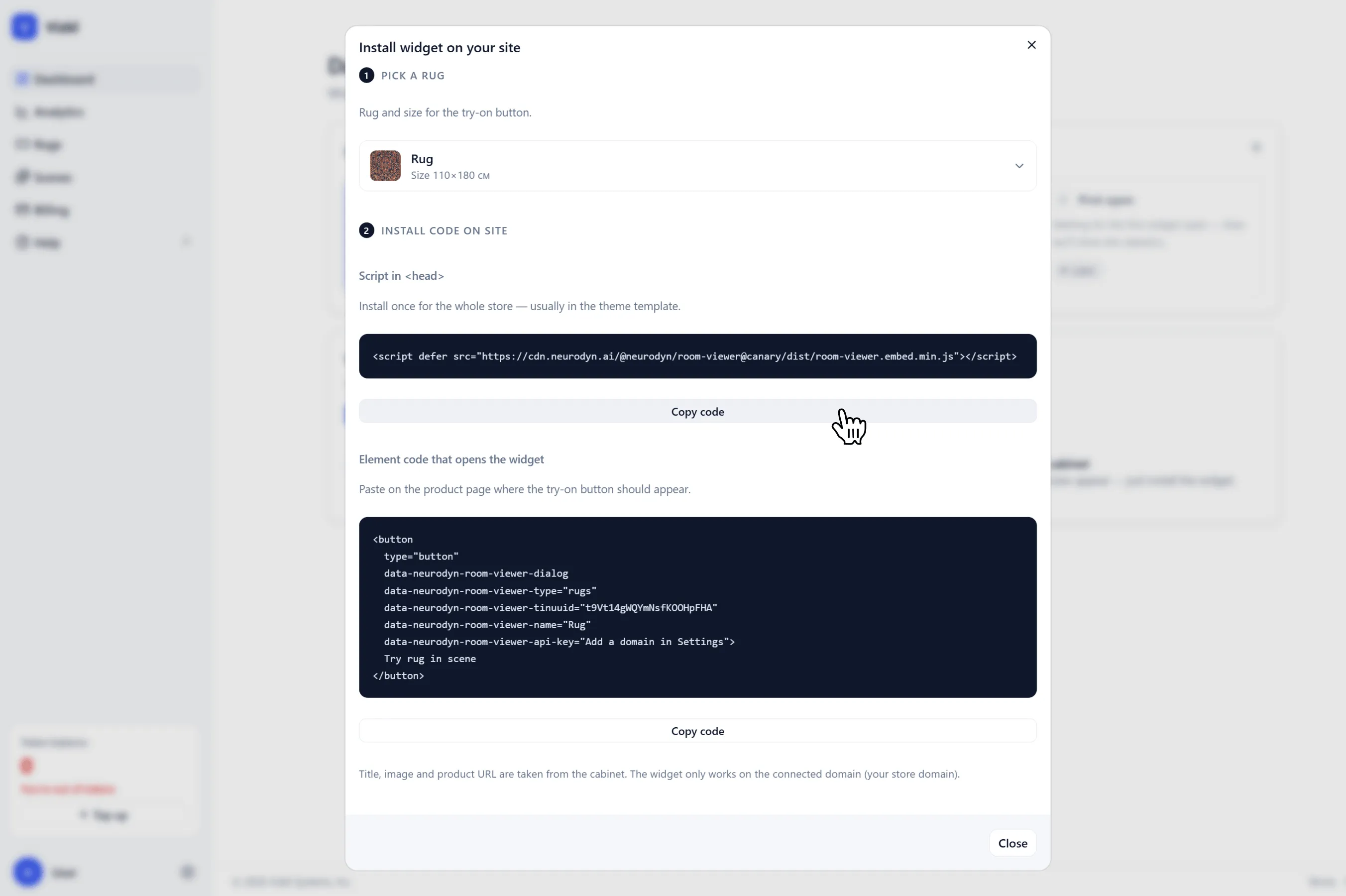
Element parameters
Triggers the virtual try-on when clicked. Paste the element code wherever you want on the page, or copy just the parameters and attach them to an existing element — a button, link, or image. Add them separately for each product.
No manual configuration needed — the parameters are generated automatically.
Here’s what the code looks like:
Get help in our Discord
Join our Discord to ask questions about these instructions or get technical support. If something isn’t working, open a ticket and our team will investigate.