
Adding a custom AR button to your Shopify theme
Put a Vizbl block into your Shopify theme, so the AR button sits in your page layout and looks like part of your store.
Right now, the Vizbl integration with Shopify works only through connect.vizbl.com. If your store is on Shopify, please use this dashboard.
Go to connect.vizbl.comYou can add a Vizbl button to your product page template. Unlike the no-code button, it stays in your page layout instead of floating over the page, so it looks like part of your store.
Vizbl blocks need a subscription
Installing the Vizbl app in Shopify isn’t enough: to use Vizbl blocks in your theme, you need a paid subscription. You can choose the plan in your dashboard on connect.vizbl.com.
Adding a Vizbl block to your product page
1. In your Shopify admin, go to Online Store.
2. Next to your current theme, click Edit theme. The theme editor opens.
3. In the template menu at the top of the editor (it starts on Home page), select Products and pick your product template — for example, Default product.
4. In the sidebar on the left, expand the section with the product title and price (Product information in the Horizon theme) and click Add block.
5. In the list that opens, click Apps and pick any Vizbl block.
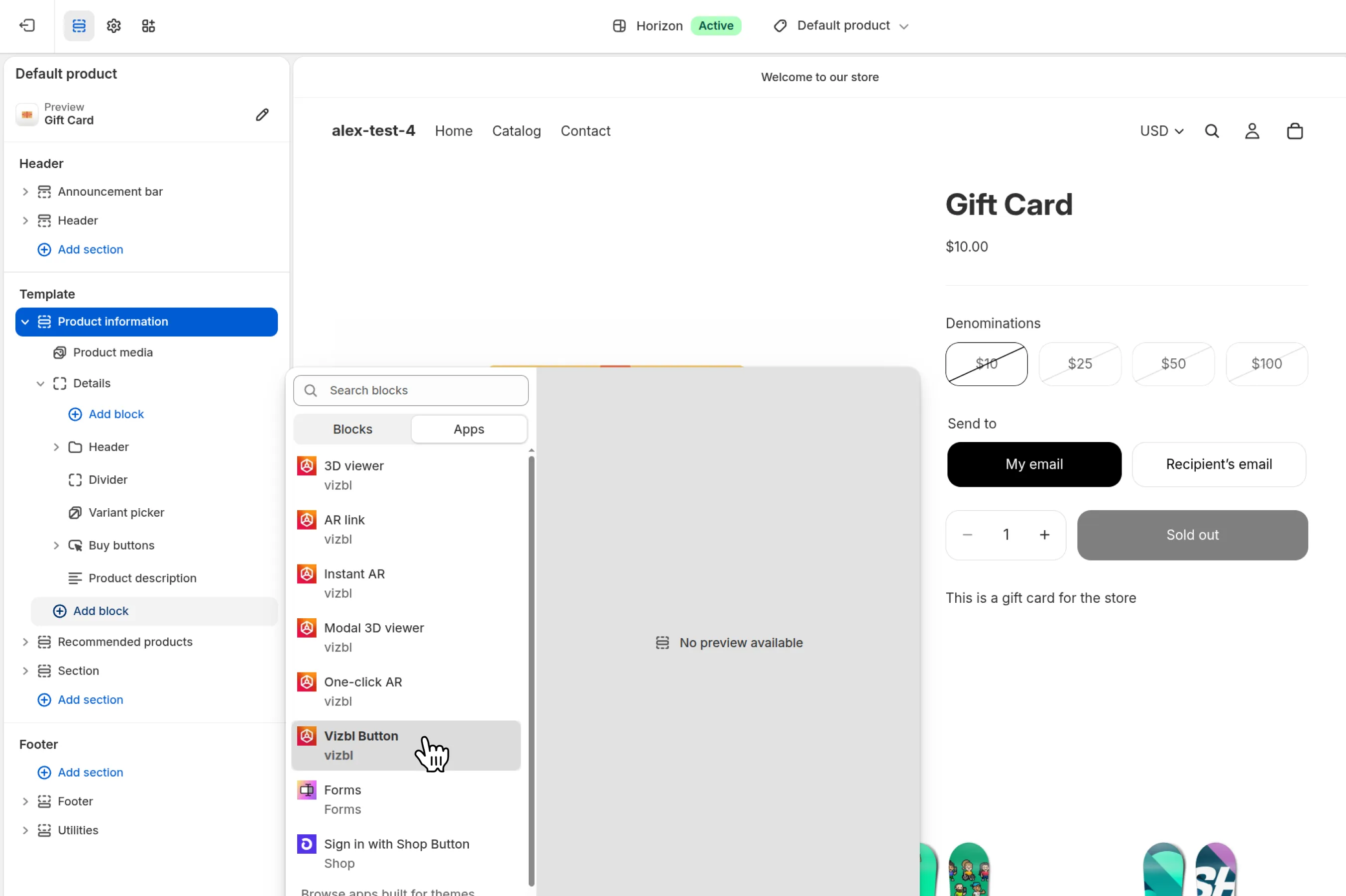
6. If the button lands in the wrong spot, drag the block by its handle in the section list.
7. Click Save at the top right and check the result. If the product is linked to a 3D model, the Vizbl element appears on the page.
8. If the no-code button is on, turn it off, or your page will show two buttons. In your dashboard on connect.vizbl.com, open Widget and switch off Show in product card.
Adding and customizing the no-code AR button in Shopify
If your products use several templates, add and set up the button in each of them separately.
Vizbl blocks available in Shopify
3D viewer — an interactive 3D viewer on the product page, where shoppers can rotate the model.
Modal 3D viewer — the same viewer, opened with a button in a pop-up window.
AR link — a link to a page that opens the AR view.
Instant AR — One-click AR with extra features for iPhone users: they can place several products in the room at once and switch colors right in AR. On Android, it works as One-click AR.
One-click AR — opens the AR view right on tap, skipping any screens in between. Shoppers on a computer see a QR code that opens the AR view on their phone.
Vizbl Button — a general-purpose button with a Mode switch. It has two modes:
- 3D & AR viewer — opens a page with the 3D view, where shoppers can switch to AR.
- One-click AR — works like the One-click AR block.
Setting up Vizbl buttons
All Vizbl buttons except 3D viewer are set up the same way, so we’ll use Vizbl Button as the example.
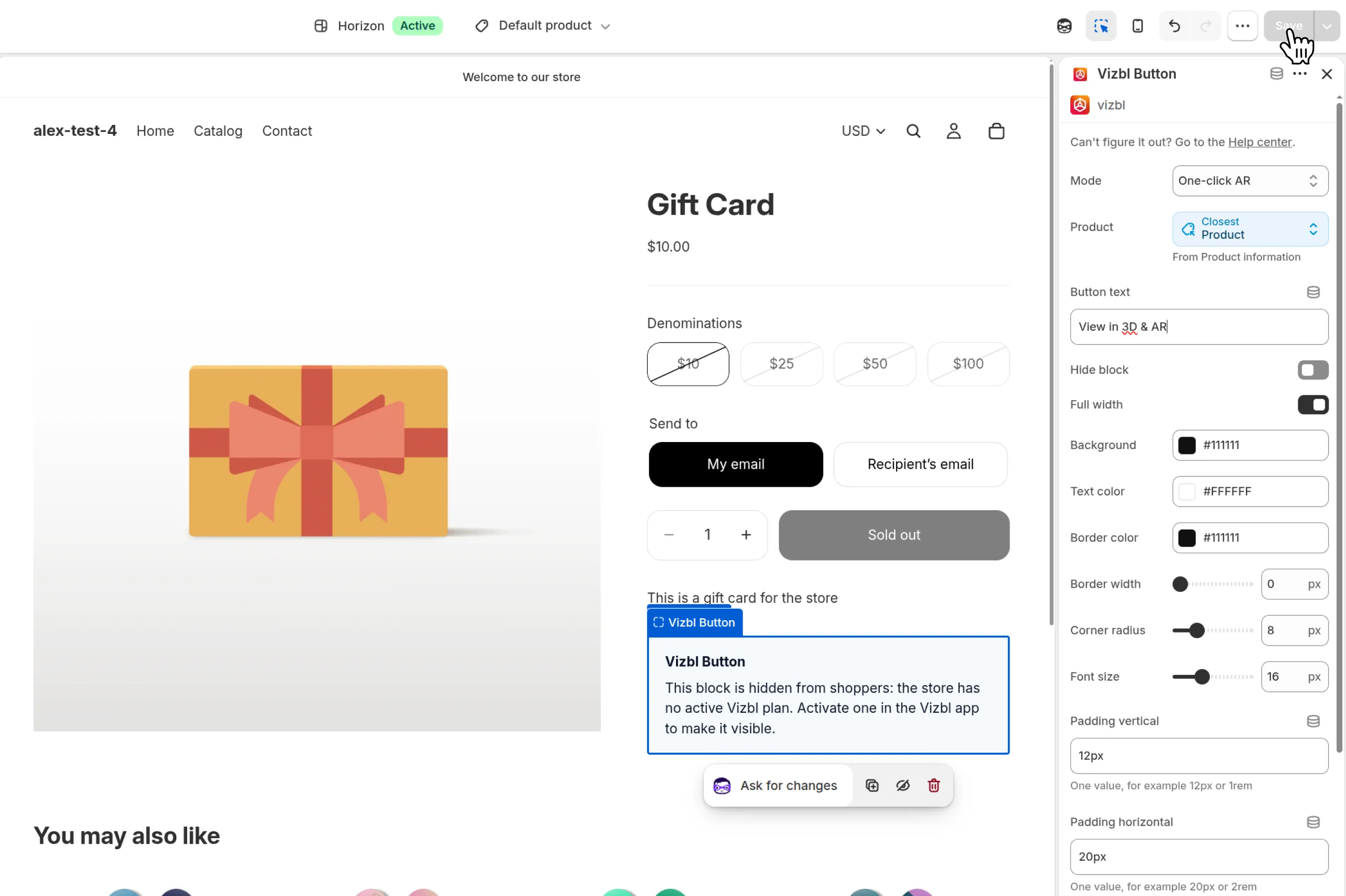
Mode — 3D & AR viewer or One-click AR. Only Vizbl Button has this setting.
Product — which model the button opens. The default is Closest Product: the button shows the model linked to the current product in your dashboard on connect.vizbl.com.
If you choose Select Product, the button shows the same model on every page that uses this template.
The other settings control how the button looks:
- Button text — the label on the button. The default is View in 3D & AR.
- Hide block — takes the button off your storefront. The block and its settings stay in the template.
- Full width — stretches the button across the product column, the way your Add to cart button does.
- Background, Text color, Border color — hex values, for example
#111111. - Border width, Corner radius, Font size — in pixels. Drag the slider or type a number.
- Padding vertical, Padding horizontal — the space inside the button: top and bottom, left and right. One value each, like
12pxor1rem.
Get help in our Discord
Join our Discord to ask questions about these instructions or get technical support. If something isn’t working, open a ticket and our team will investigate.