· AR · 6 min read
Augmented Reality Design Tips: How to Get Shoppers to Use Your AR Button
An AR integration pays off only when shoppers tap the button. Design tips for a try-on button people find, understand, and trust.
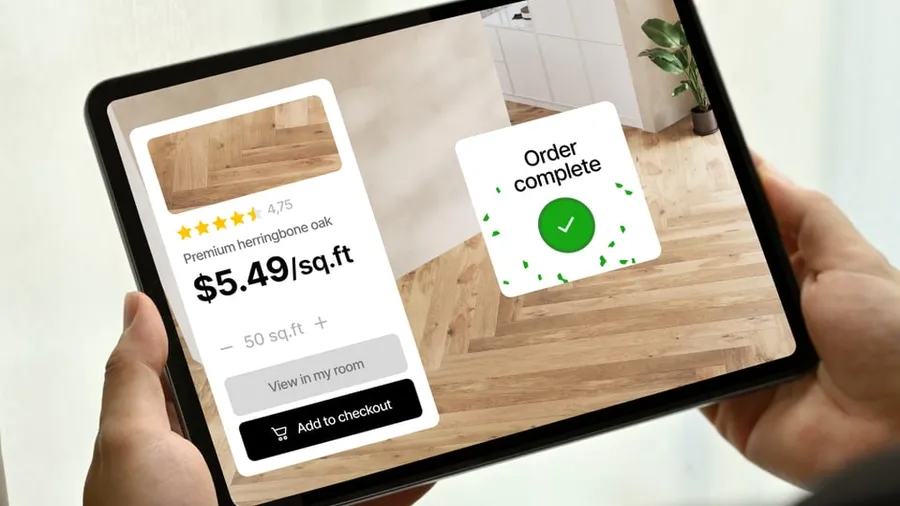
Paying for an AR integration, or building one yourself, is only half the job. Shoppers also need to find it at the moment they’re deciding, and once it opens, it has to answer one question: how will this look in my home?
Here are our augmented reality design tips: where to put the virtual try-on button, why a 3D viewer is worth more than you might think, and why you should ask your provider for a demo before you pay.
Put the button where shoppers can see it
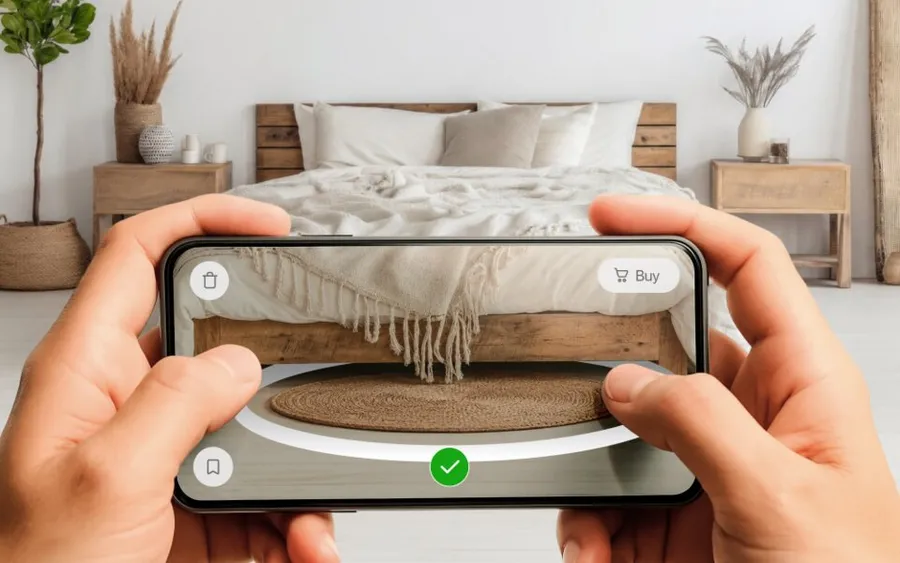
When you design augmented reality features for your store, start with the button. Virtual try-on can only help if shoppers notice it, so put it in plain sight, where people expect to find it. We recommend placing it right next to Add to cart or Buy now.
If it sits down by the reviews, hides behind a More menu, or doesn’t look like a button at all, shoppers will probably miss it.
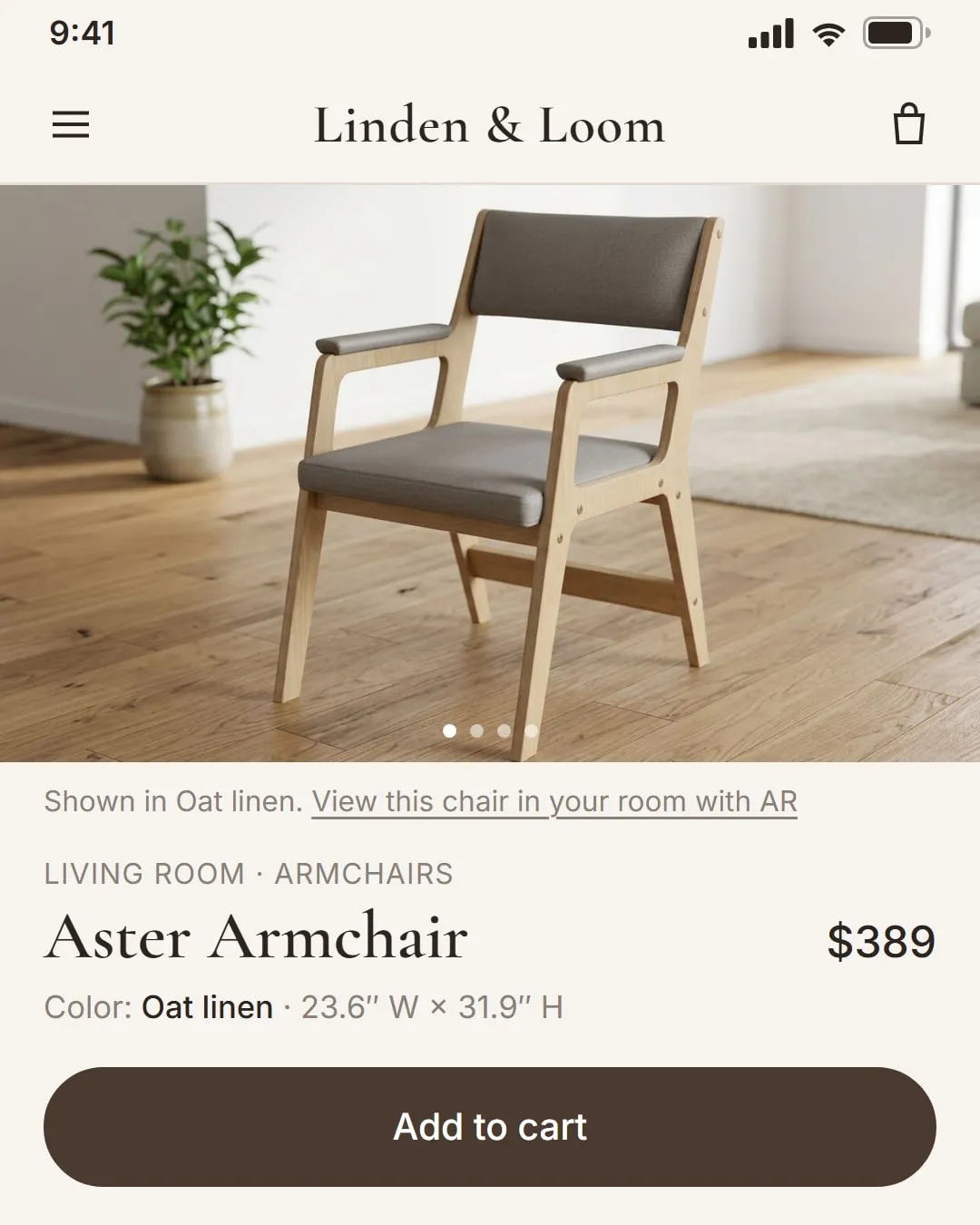
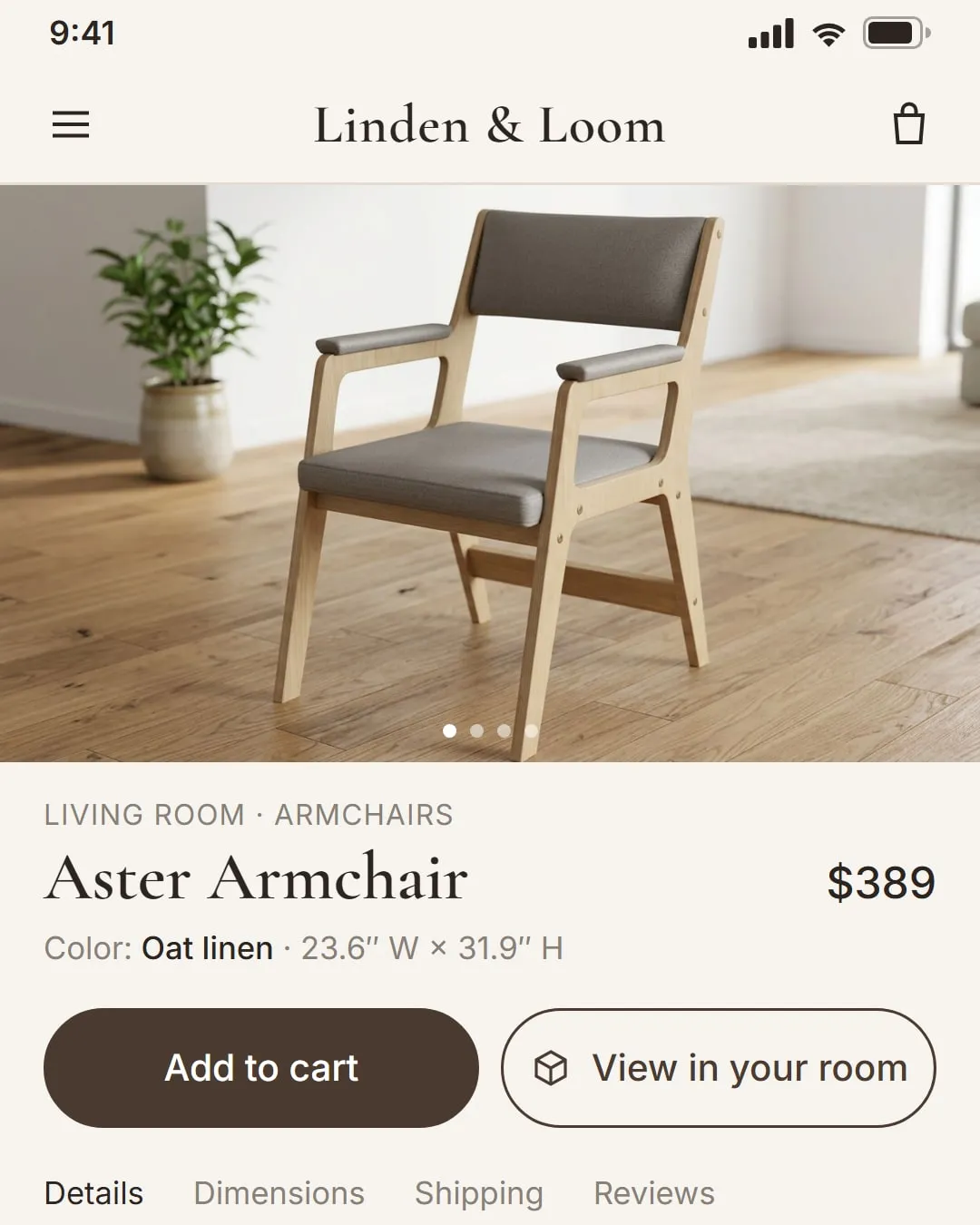
The button should also match your store’s design. If it looks out of place, shoppers may assume something’s broken and think twice before tapping it.
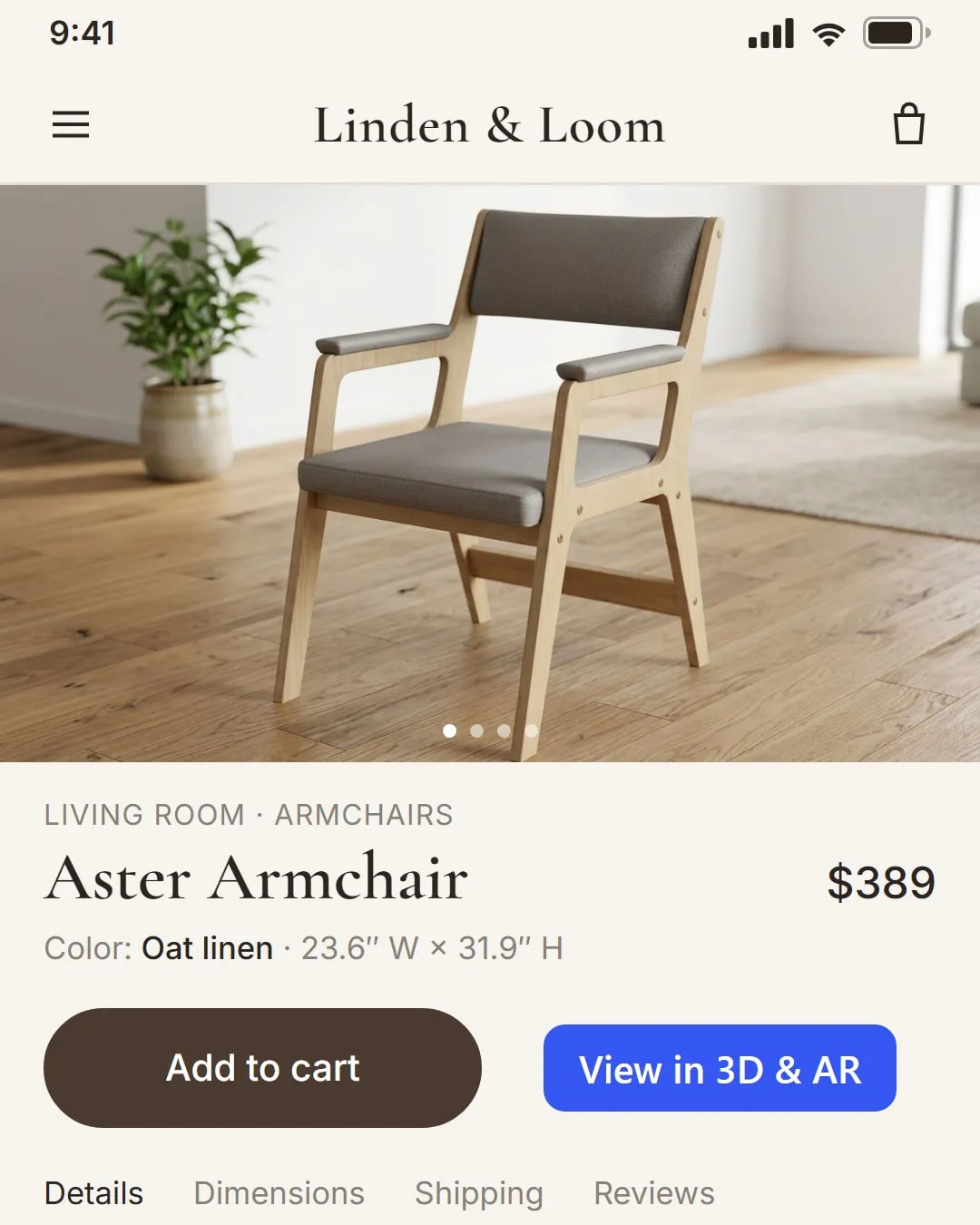
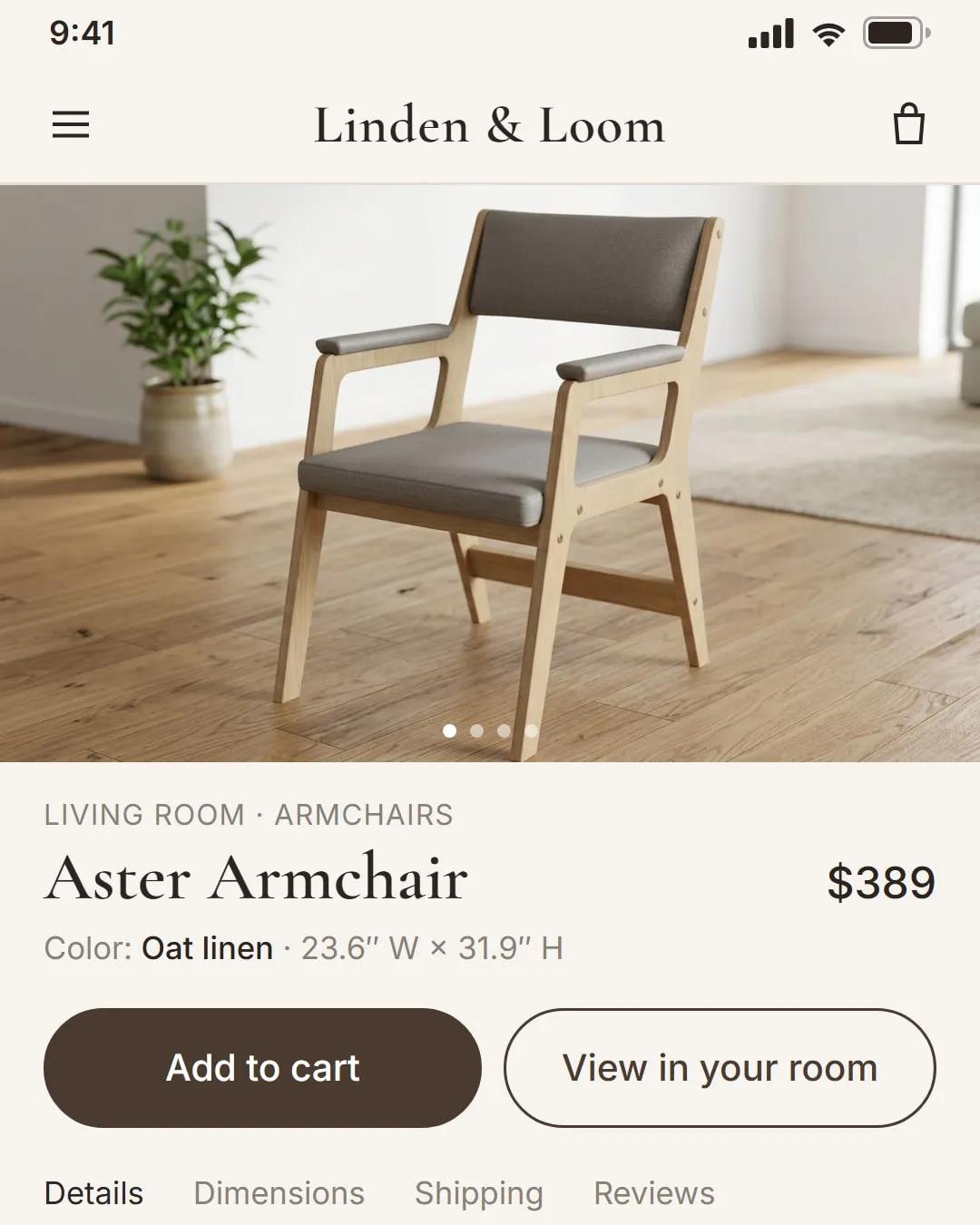
Notice that the AR button doesn’t compete with Add to cart. Keep it that way on your site, so it’s always obvious which button completes the purchase. When you design AR buttons, make them secondary, with an outline and a muted background. Placed in the right spot, the button will still get noticed.
Use a clear button label
People hesitate to tap a button when they’re not sure what it does. With augmented reality in design, this matters even more, because AR is still new to many shoppers. That’s why we don’t recommend replacing the text with an icon. AR does have one, Apple’s cube, but it’s nowhere near as familiar as the icons for copy or send. Use the icon as decoration next to the label, not instead of it.
Shoppers expect a button to do something, so start the label with a verb. View in AR and plain AR may look interchangeable, but only the first tells shoppers that something is about to open on their screen. AR on its own could just as easily lead to a page about the feature.
| Clear | Unclear |
|---|---|
| View in AR | AR |
| Start virtual try-on | Virtual try-on |
| See it in your room | Try-on |
Label products that have virtual try-on
Even in stores that offer AR, the category page often doesn’t show which products have it, or whether the store has it at all. Add a small label with an icon and the words Virtual Try-on to product cards in your catalog, and every visitor will see where AR is available.
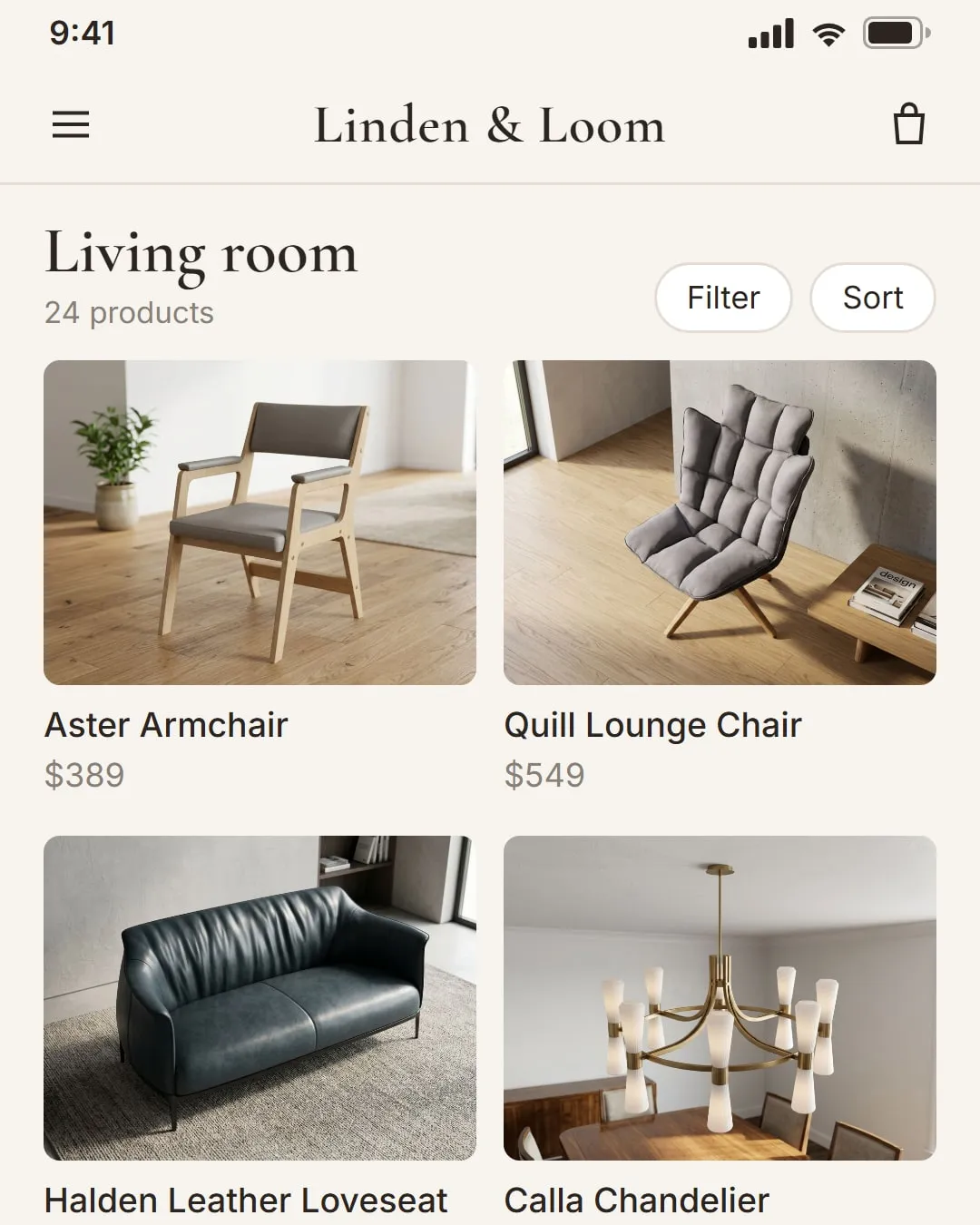
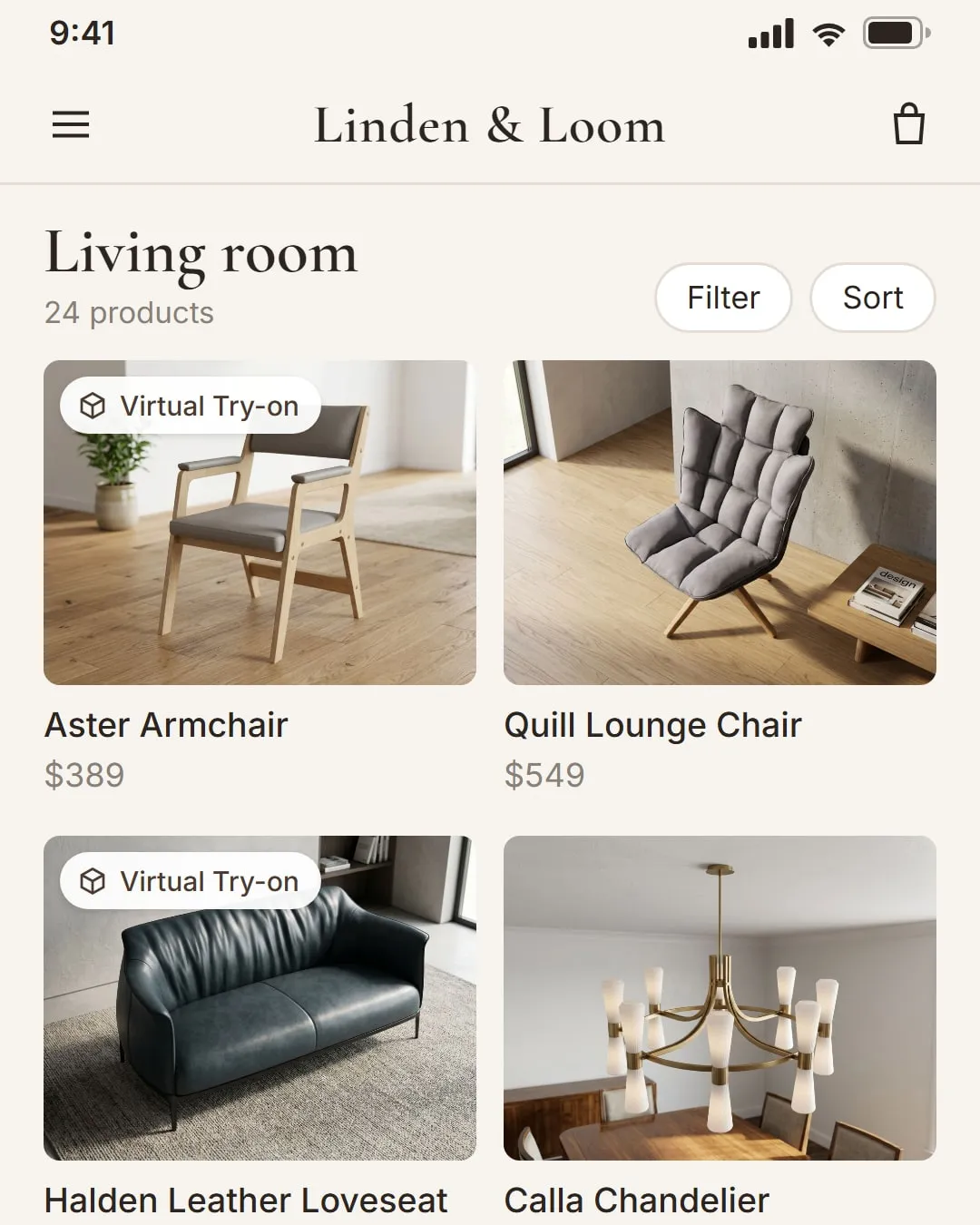
A label like this doesn’t say much, but it’s enough to make people curious. Shoppers who’ve never tried AR get a reason to click, and the feature may well impress them. Those who already know it can go straight to the products where it’s available.
Don’t overlook the 3D viewer
AR puts your product right in the shopper’s room, but don’t underestimate the 3D viewer. It lets people look at the product from every angle and get a better sense of its size, even when they’re away from home.
Give it a try: rotate this sofa in the Vizbl 3D viewer and zoom in.
Make sure the model matches the product
Good product photos are still an important part of the product page. Shoppers look at them first and use them to decide whether a product deserves a closer look. But once they open AR, the model in their room has to match what they saw in the photos.
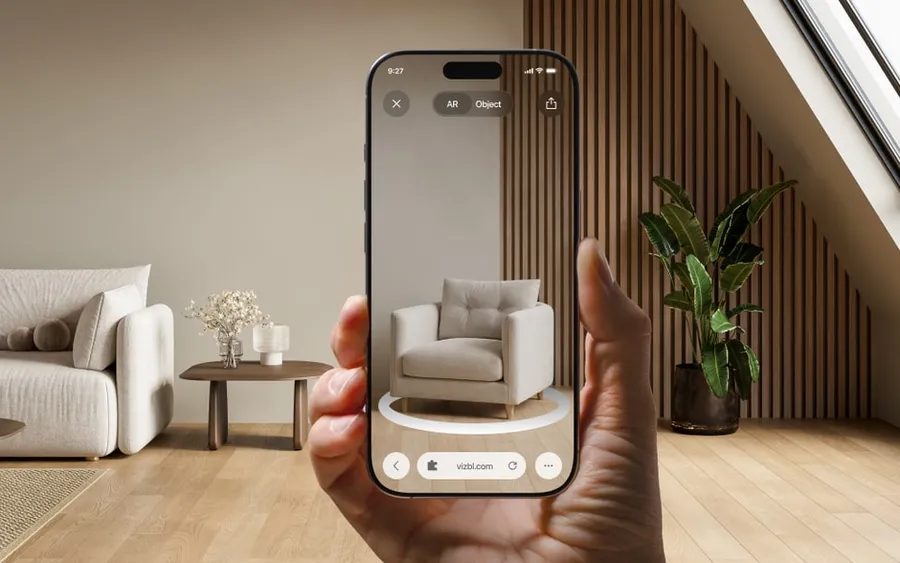
Say you’ve found a great armchair online and want to see it in your room. You tap the AR button and get a bed instead, a giant one. Whatever trust you had in the feature is gone, and you’re back to the tape measure, even if it was a one-off glitch.
In a 2024 UX study, the Baymard Institute tested AR on the sites of several furniture retailers. Many participants ran into problems that only made them more hesitant to buy: models were easy to resize by accident, and many of them were low quality. Of the participants who saw the AR button, 87% chose not to use it, most of them because of bad experiences like these on other sites.
We know where the built-in AR on today’s phones falls short, which is why Vizbl integrations run on our own technology. Our AR view doesn’t let shoppers resize models freely, and we keep improving how it finds floors and other surfaces. We also create 3D models for the platform, built to each product’s real dimensions, so our clients’ customers can answer the “will it fit?” question before they buy.
Make sure the integration actually works
This one isn’t about interface design, but it matters just as much: test the AR widget’s basic functions before your visitors ever see it. If it’s broken from day one, shoppers will stop trusting it fast, and the integration you paid for won’t pay for itself.
In a 2025 survey of US online shoppers, Baymard found that 17% of those who abandoned a cart did so because the website had errors or crashed. If it’s only the AR that breaks, shoppers probably won’t leave your store over it, but they’ll leave with a worse impression of your site.
Keep in mind, too, that shoppers may open the try-on on a weak mobile connection, where a heavy model takes a long time to load. Test it yourself: throttle your connection and see whether the 3D model loads fast enough.
See a demo before you pay
Before you add a third-party virtual try-on to your website, ask the provider to show you a live demo of how it will work for your shoppers.
If you can’t find a demo on the provider’s website, or they won’t show you one until you’ve paid, that’s a good reason to look elsewhere.
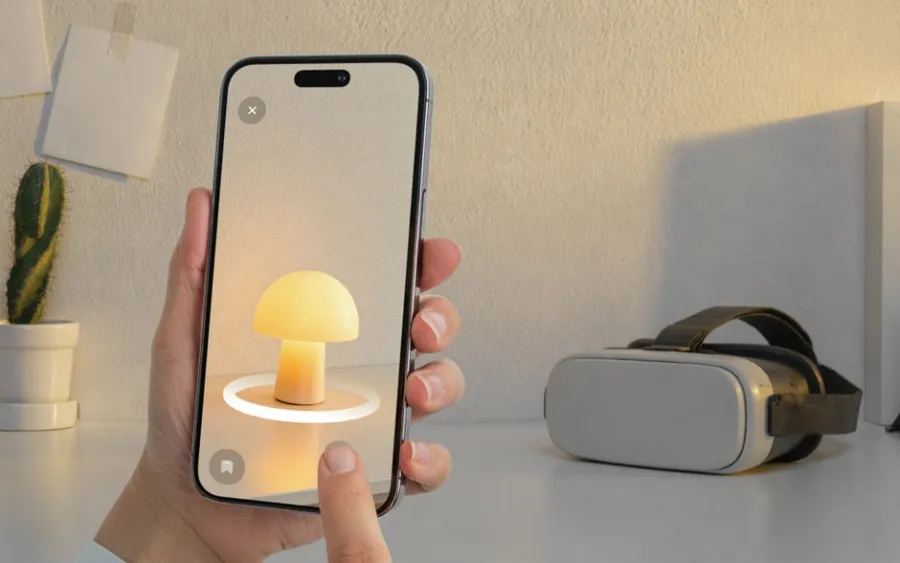
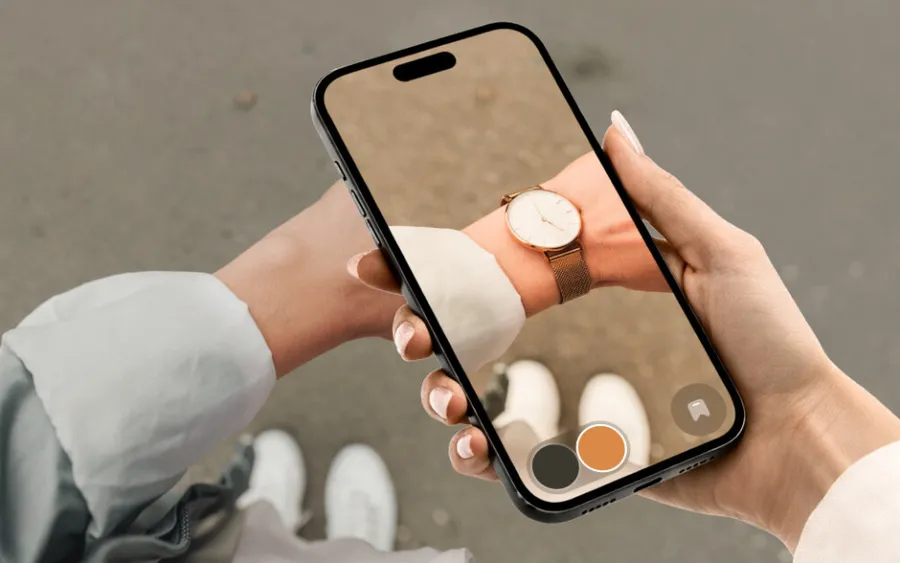
Every Vizbl product page has live demos, and you can try three of them right here. Each one works exactly the way it does on our clients’ websites.
We also build live demos for businesses that are already selling online. Send us a request, and we’ll be in touch.