
Creating and editing an object variant
Learn how to create a variant, change its color, add a preview image, and save your changes.
Variants let you show different versions of the same product in AR — for example, different colors, materials, or model changes. This is useful for displaying a product range without uploading separate objects for each version.
Creating a variant
- Go to your Core AR dashboard and click 3D Models in the top navigation bar.
- Click the preview image of any object in the list.
- In the model editor, click 3D Editor.
- Find the Variants panel on the left — click + to add a new variant.
Click the pencil icon next to a variant to open a menu where you can upload or generate a preview image and set a color thumbnail — this is what your customers will see when switching colors during AR view.
All further changes will apply only to the new variant. The original variant will remain unchanged.
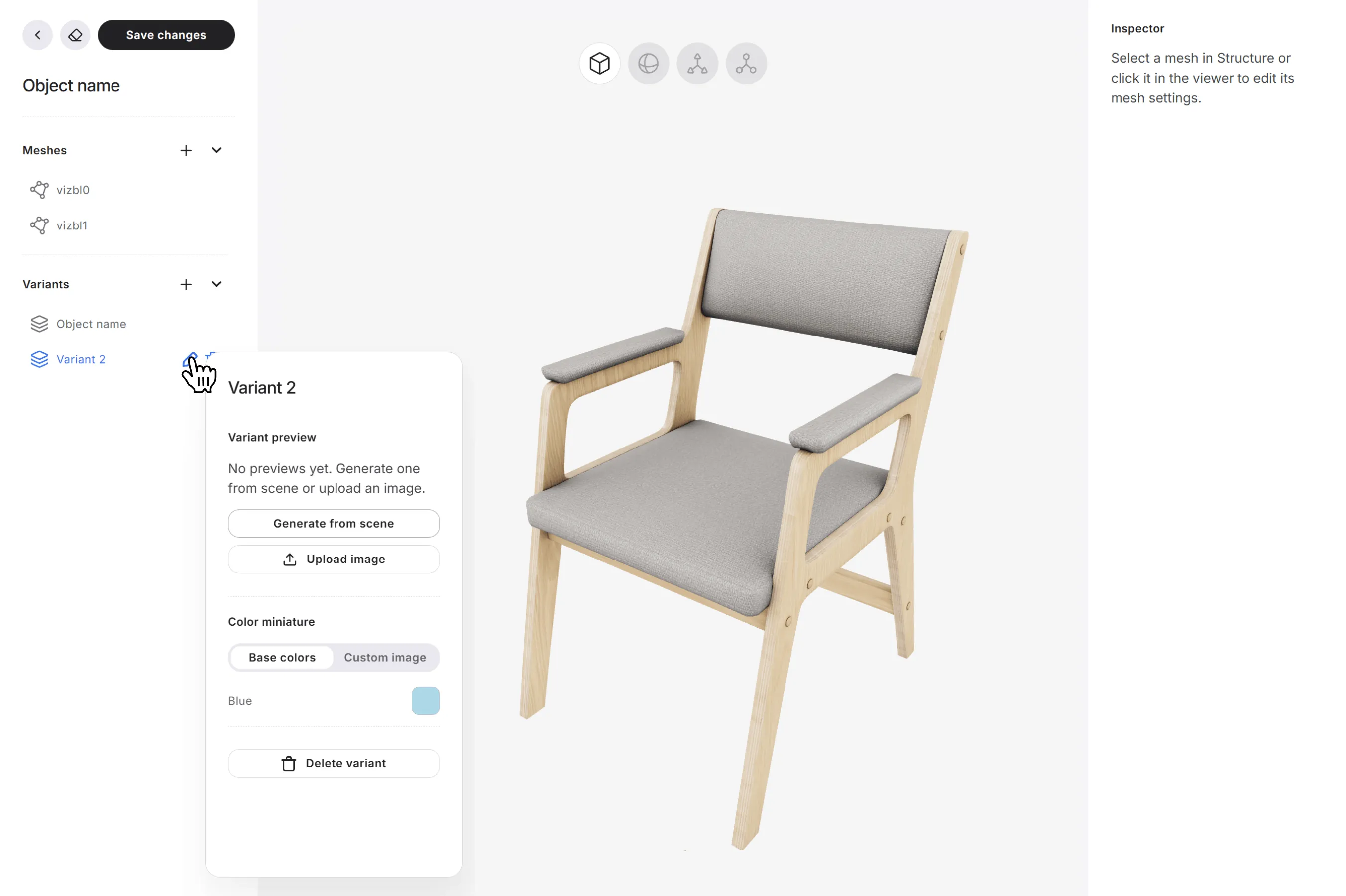
Edit a Variant
In the workspace, select the part of the object you want to edit. You can also select it from the Meshes list in the left sidebar.
If your object consists of a single mesh, all changes will apply to the entire object.
To change the appearance of the selected mesh:
- In the left sidebar, open the Color section.
- Choose one of the following options:
Replace the Texture
Upload a different texture for the selected mesh.
- Click the current texture preview.
- Select and upload a new texture file
Use a Solid Color
Replace the texture with a solid color.
- Click the color swatch.
- Choose the color you want to apply.
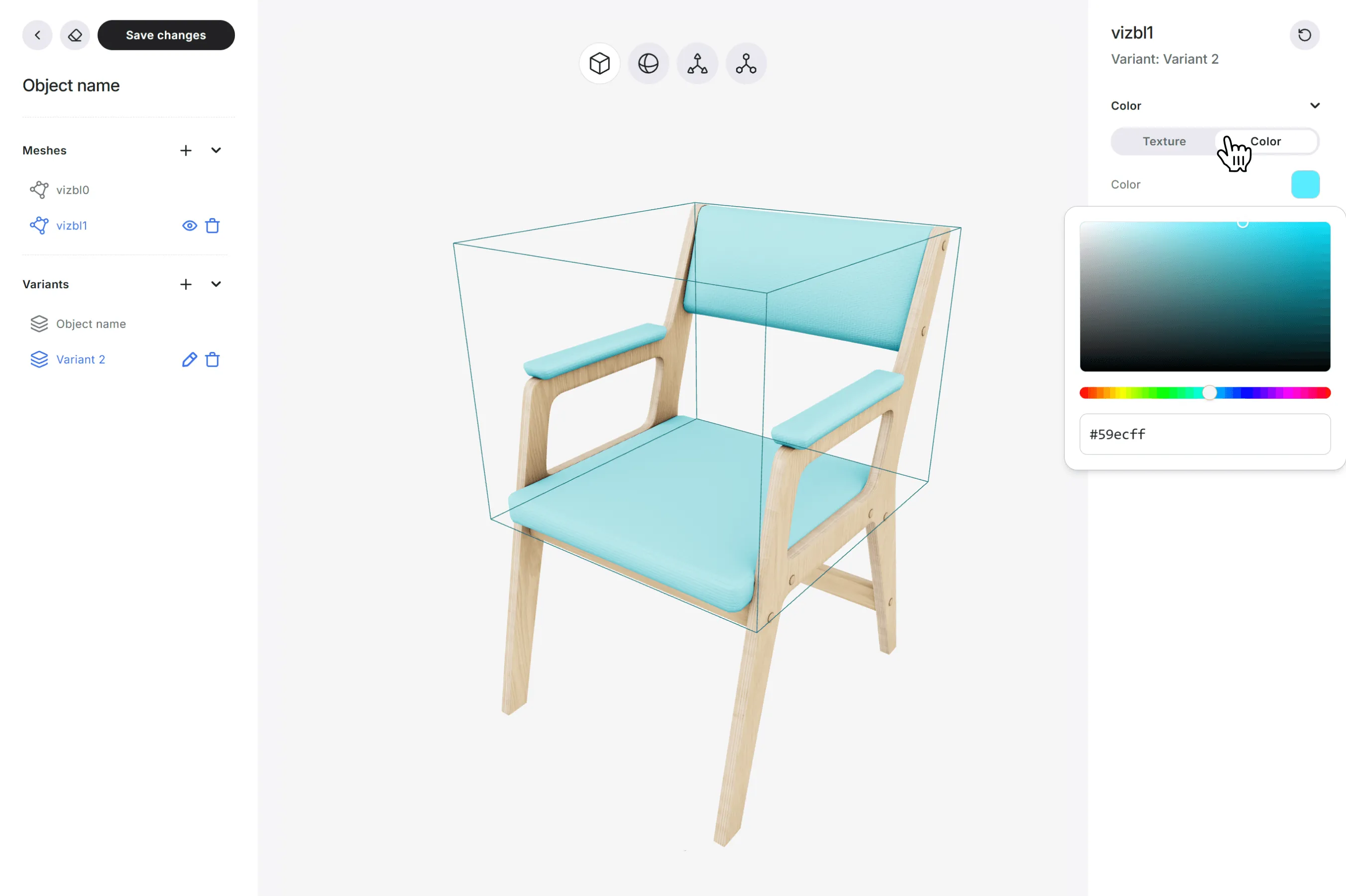
To save the variant, click Save in the top-left corner.
To switch between existing variants, click a variant name in the Variants section in the left sidebar.
All saved variants will be available to customers in the multi-object AR viewer.
You can also edit other object properties, including transparency, normal map intensity, and material settings.
Get help in our Discord
Join our Discord to ask questions about these instructions or get technical support. If something isn’t working, open a ticket and our team will investigate.