· AR · 6 min read
3D models for ecommerce: Which products to generate from photos and which to pay a 3D artist for
Generate 3D models from product photos, order them from a 3D artist, or upload the manufacturer’s file? Learn which option fits each product and how to check your first models in AR on your phone.
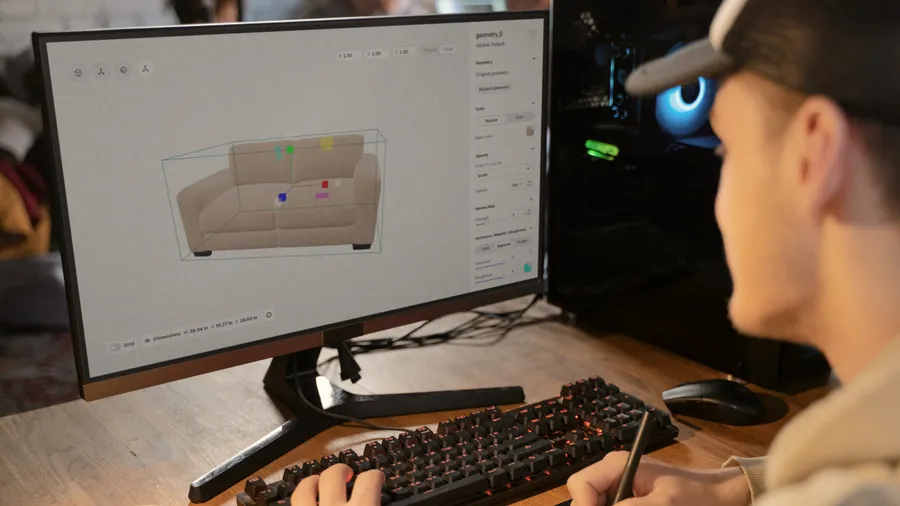
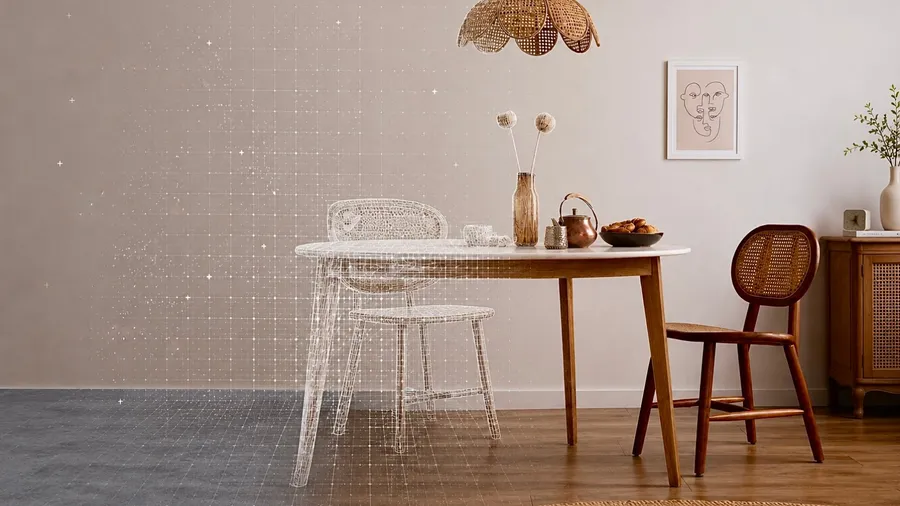
Before shoppers can spin an armchair around in 3D or place it in their own room, you need a 3D model of that armchair. AI can generate 3D models for ecommerce from photos of most products, including furniture, lighting, decor, and anything else with a simple shape. But it does a poor job on glass, mirrors, and pieces with lots of small details, and those are usually better left to a 3D artist. Here’s how to decide which models to generate and which to order, and how to check each one on your phone before it goes live.
Look for an existing 3D model first
Ask the manufacturer whether they already have a 3D model of the product. Some do, though they don’t usually advertise it. Their model matches the product exactly; AI works from photos alone and can only approximate the small details. If they send you one, you can upload it to VIZBL yourself. If all they have is CAD drawings, you can’t upload those, but a 3D artist can work from them when you order a model.
Another place to look is a public 3D model library, where people share models they’ve made. It can be hard to find your exact product there, and harder still to find it under a CC0 license, the kind that lets you use a model commercially without crediting the creator. Our guide to finding 3D models covers other sources and the pros and cons of each.
Where to find 3D models for AR try-on →
Generate models of products with simple shapes, but test anything with glass, mirrors, or fine details
If there’s no existing model, you can generate one in VIZBL. AI does best with solid items that have a simple shape and a matte or slightly textured surface, such as furniture, lighting, and decor. It has a harder time with glass, mirrors, thin or wire frames, and products shoppers buy for a small detail that doesn’t show clearly in the photos. Our gallery has eight models AI made from photos, and you can place any of them in your own room in AR.
Models generated from photos →
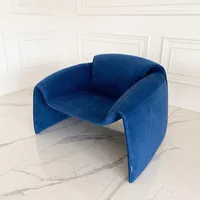
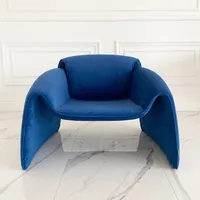
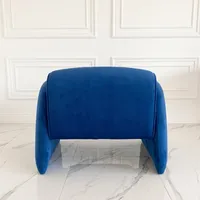
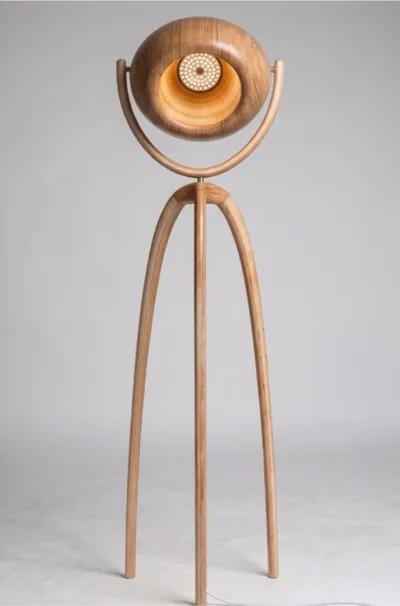
The floor lamp in the gallery didn’t come out right. On the model, the open, bowl-shaped shade turned into a solid dome, and the arm it hangs from disappeared. The proportions, the stand, and the wood grain still match the photos.
For a product with glass, a mirror, or fine details, start with a test model at Preview quality. It’s quick and inexpensive, and good enough to judge the shape. If it looks right, generate the model for your product page at Standard or High; if not, order that one from a 3D artist.
Order 3D models from an artist when accuracy matters
A 3D artist is the better choice for products whose shape or material has to be exactly right, such as modular sofas, fireplaces, and anything with glass parts, like the shades on a light fixture. We also recommend ordering models of your bestsellers from an artist instead of generating them. If a bestseller’s model doesn’t quite match the product, your returns could actually go up.
How AR reduces returns and what your 3D models need →
Our 3D artists made the models below: a fireplace with flames and logs in the firebox, a pendant light with tinted glass shades, and a micro market kiosk with drinks and snacks behind a glass fridge door. Each has glass, reflections, or lots of small details, the kind of thing AI has a hard time with. Open any of them in 3D, or place one in your room if you’re on a phone.
Check your first 3D models on your phone before you move on to the rest of your catalog
Start with a few products, one of each type, such as an armchair, a sofa, and a floor lamp. Ideally, photograph each one from several angles, with the whole product in the frame and nothing blocking it. There’s more on this in our guide to photographing products for AI-generated 3D models.
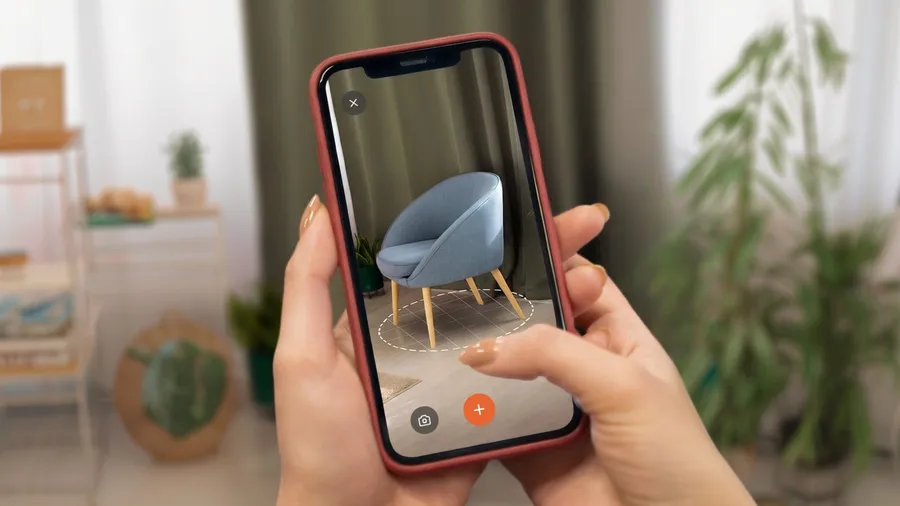
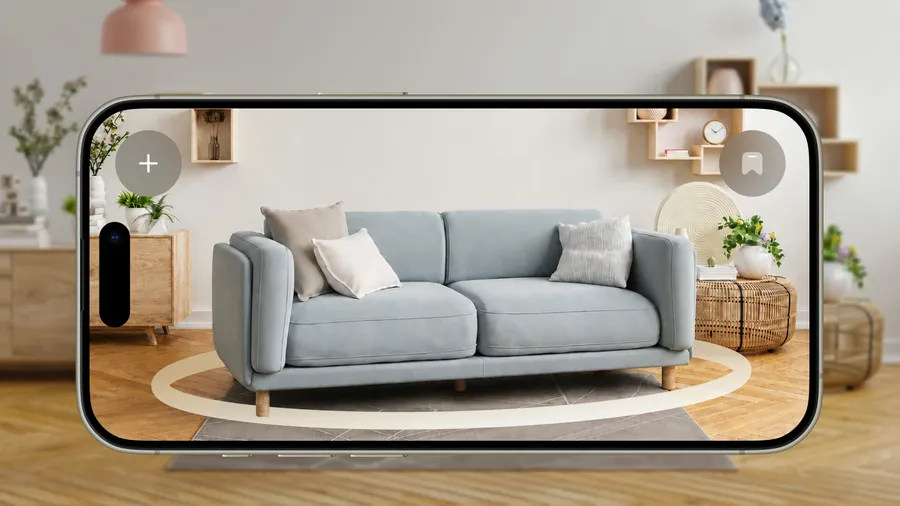
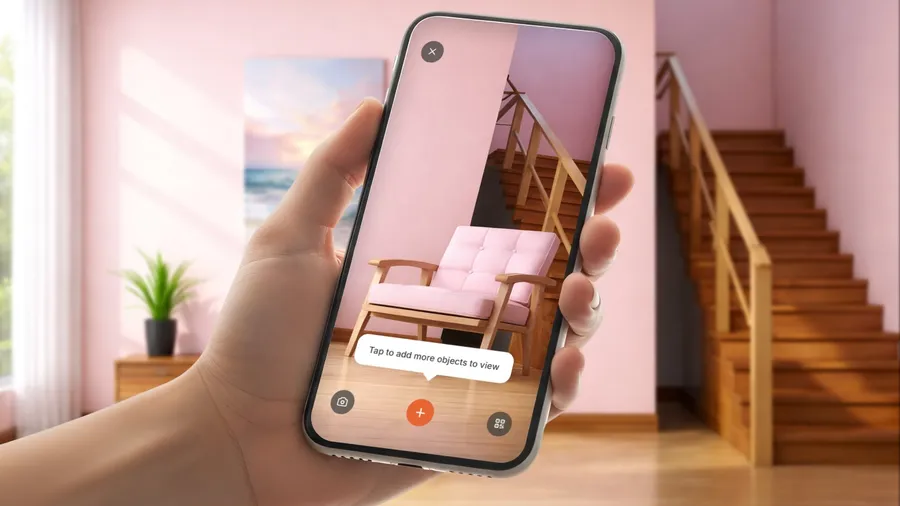
AR shows a model at whatever size it was made. Once a model is ready, compare its size with the real product, and if it’s off, fix it in VIZBL’s 3D editor. Then open the model in AR on your phone and place it where the product would go. Check the detail shoppers buy it for, like the lamp’s shade, against your photos. Our photo-to-AR guide walks through every step, from the photos to the AR button on your product page.
If your first models pass, generate models for the rest of those product types, and check the size of each one. Order models of the products that didn’t pass from a 3D artist, along with the products you planned to order from the start. That way, you pay the artist only for the models AI can’t get right.
Models from the manufacturer or a 3D artist need the same check. When we make a model for you, we ask you to open it in AR on your phone before you approve it.
Add 3D models to your site the same way, wherever they come from
All your models end up in Core AR, the VIZBL service for 3D and AR on product pages. A generated model lands there right away, our 3D artists add any model you order from us, and you upload the manufacturer’s file yourself. To put any of them on a product page, copy the code from Core AR and paste it into the page. If you’re on Shopify, add our app instead, and you won’t need any code. Then open the page on your phone and make sure AR launches.
You don’t need a 3D model at all for rugs, paintings, or flooring. VIZBL’s Rugs, Wall Art, and Flooring products work from just the photos already on your site.
Rugs → · Wall Art → · Flooring →
Generate a few models from your own photos and place them in your room. You’ll see which other products in your catalog AI can model accurately.