Collections help you organize objects in Vizbl. You can group multiple items into a set, allowing users to place several products from the same collection in their space.
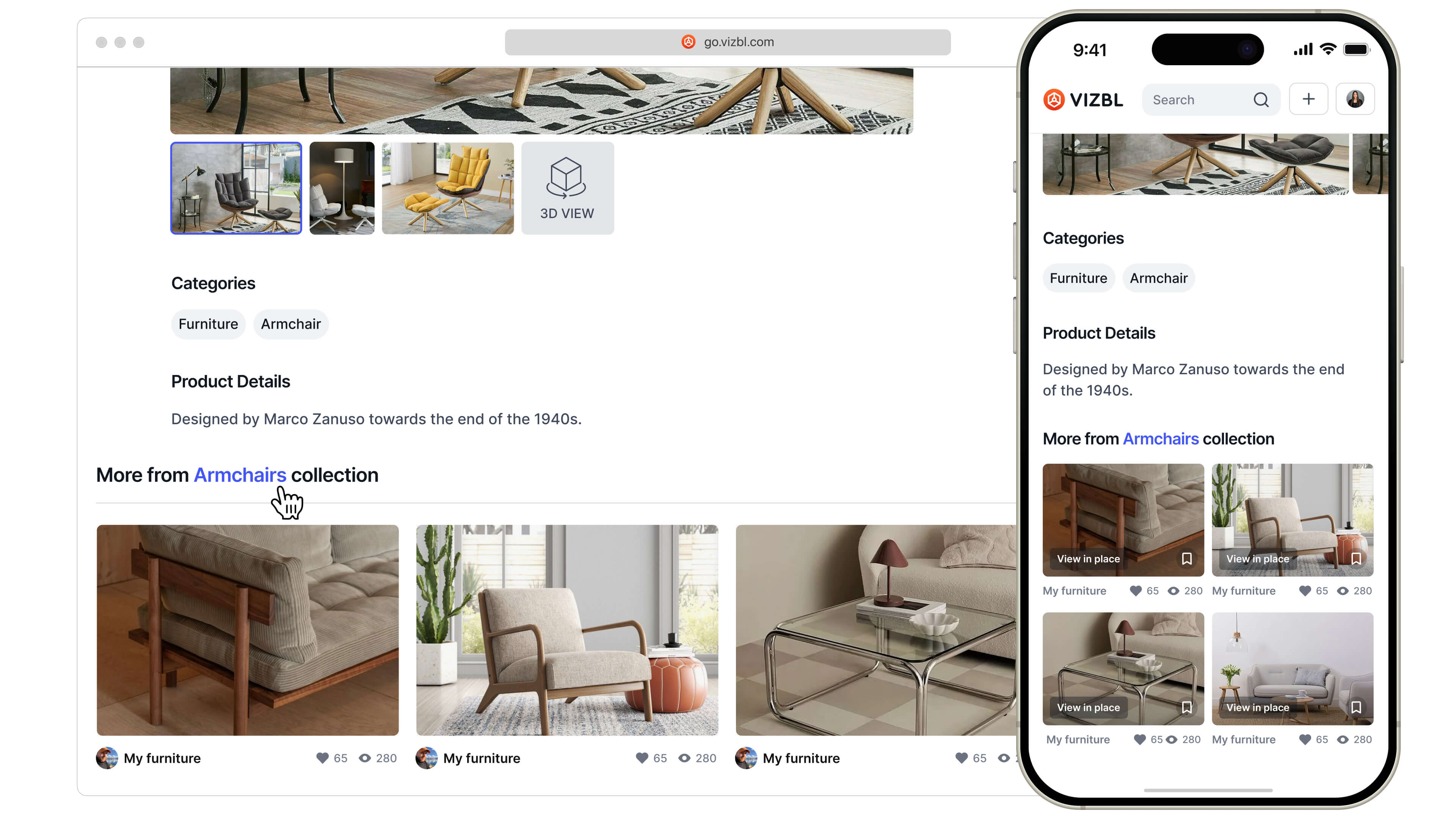
If models from a collection are published in the go.vizbl.com catalog, the collection will also appear on their product pages.
1. Go to your dashboard and click 3D Models in the top panel.
2. Above the objects list, next to All objects, click +. Enter a collection name and click Create.

3. Click All objects. In the list, click Add to collection next to any object. In the window that opens, select the collection you just created.
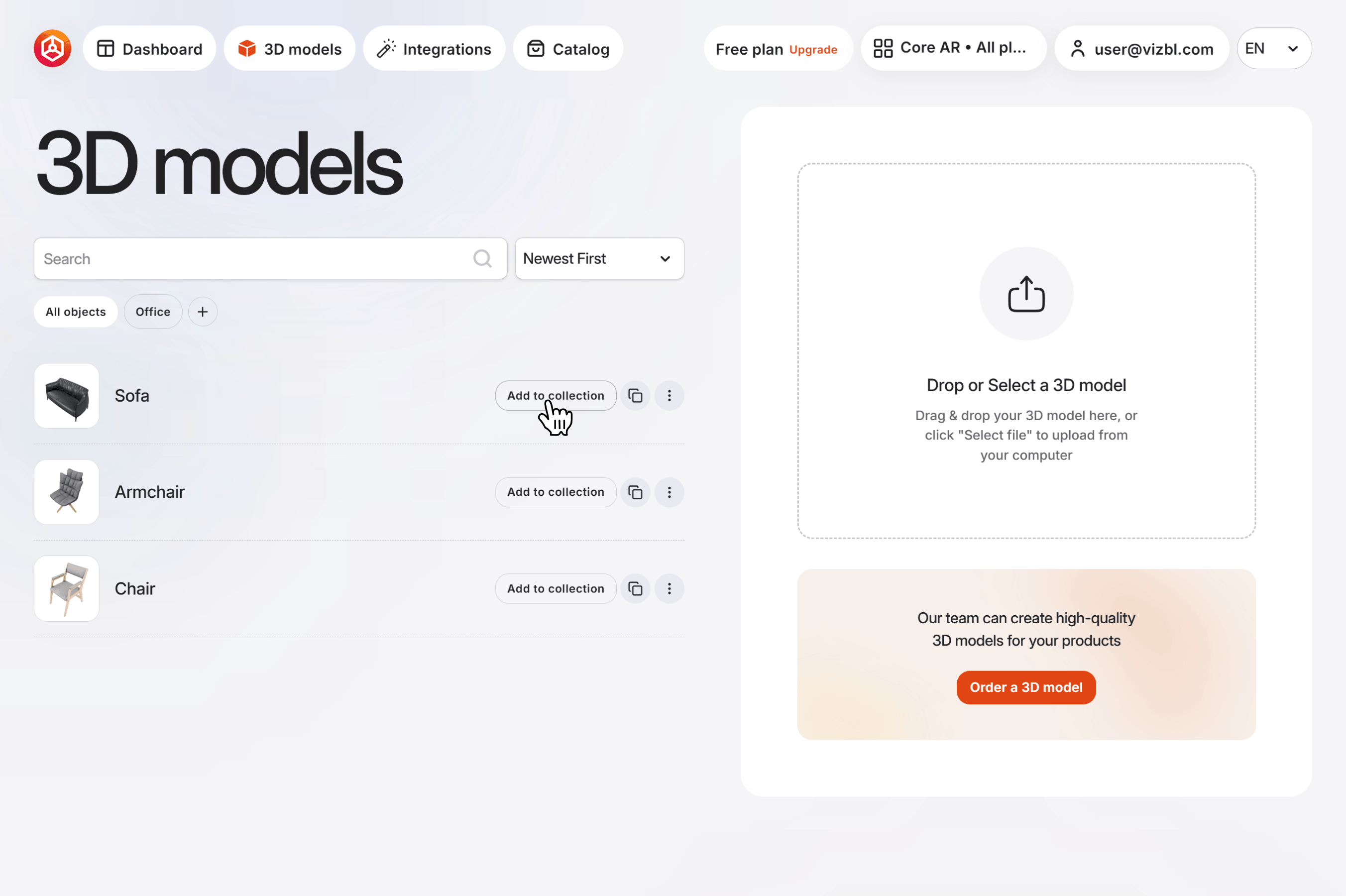
4. Repeat this step for other objects if needed.
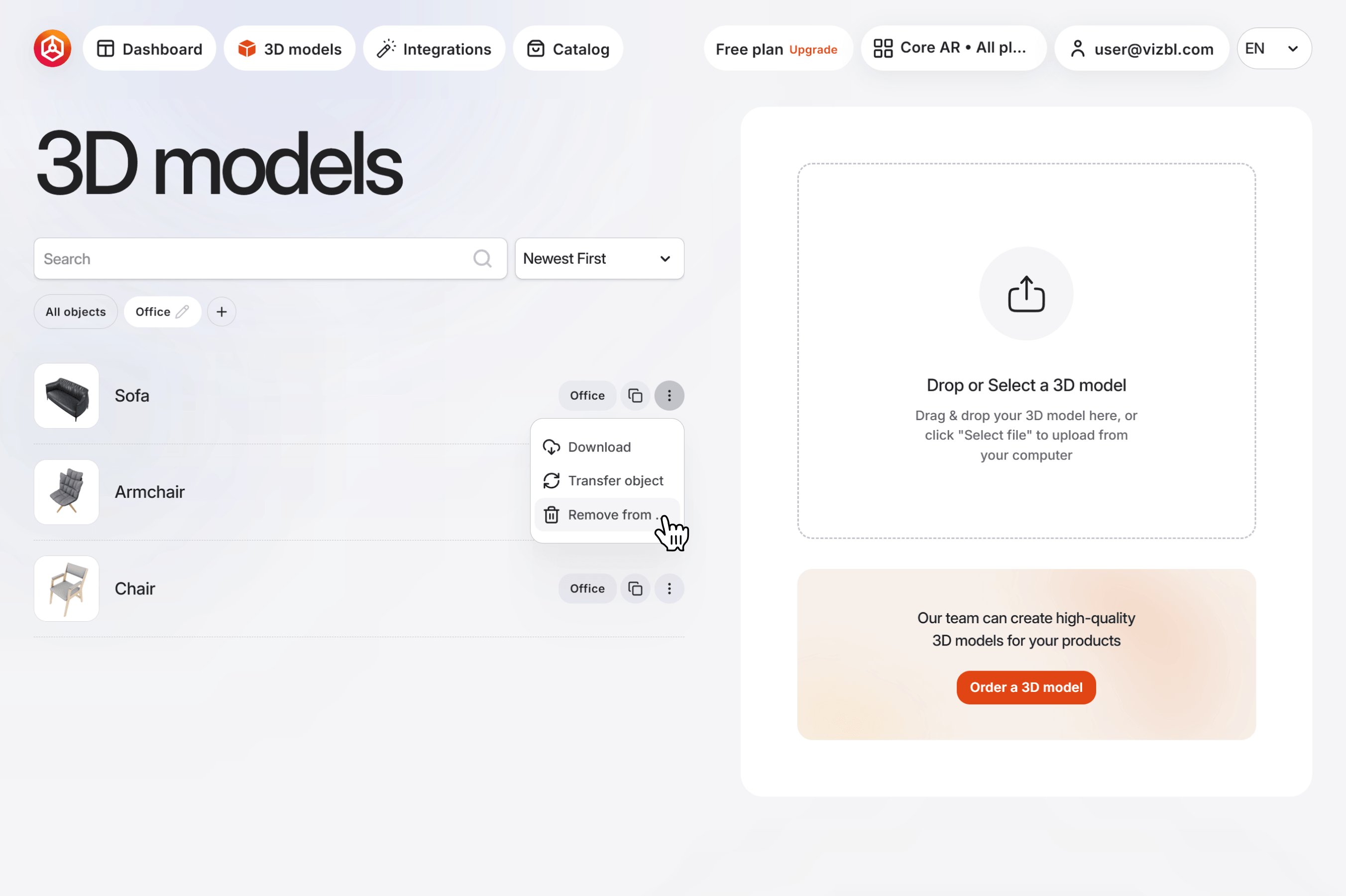
Remove an object from a collection. Open the collection, hover over the three-dot settings icon and click Remove from collection.
Rename or delete a collection. Open the collection, click the edit (pencil) icon next to its name, then rename or delete it.