Learn how to list your models in the Vizbl catalog and set up your public profile.
The Vizbl catalog is where users showcase their products for AR viewing and link customers directly to their store to make a purchase.
1. Open the Core AR dashboard and go to 3D Models.
2. Click the preview image of any object in the list.
3. In the object page, click 3D Editor.
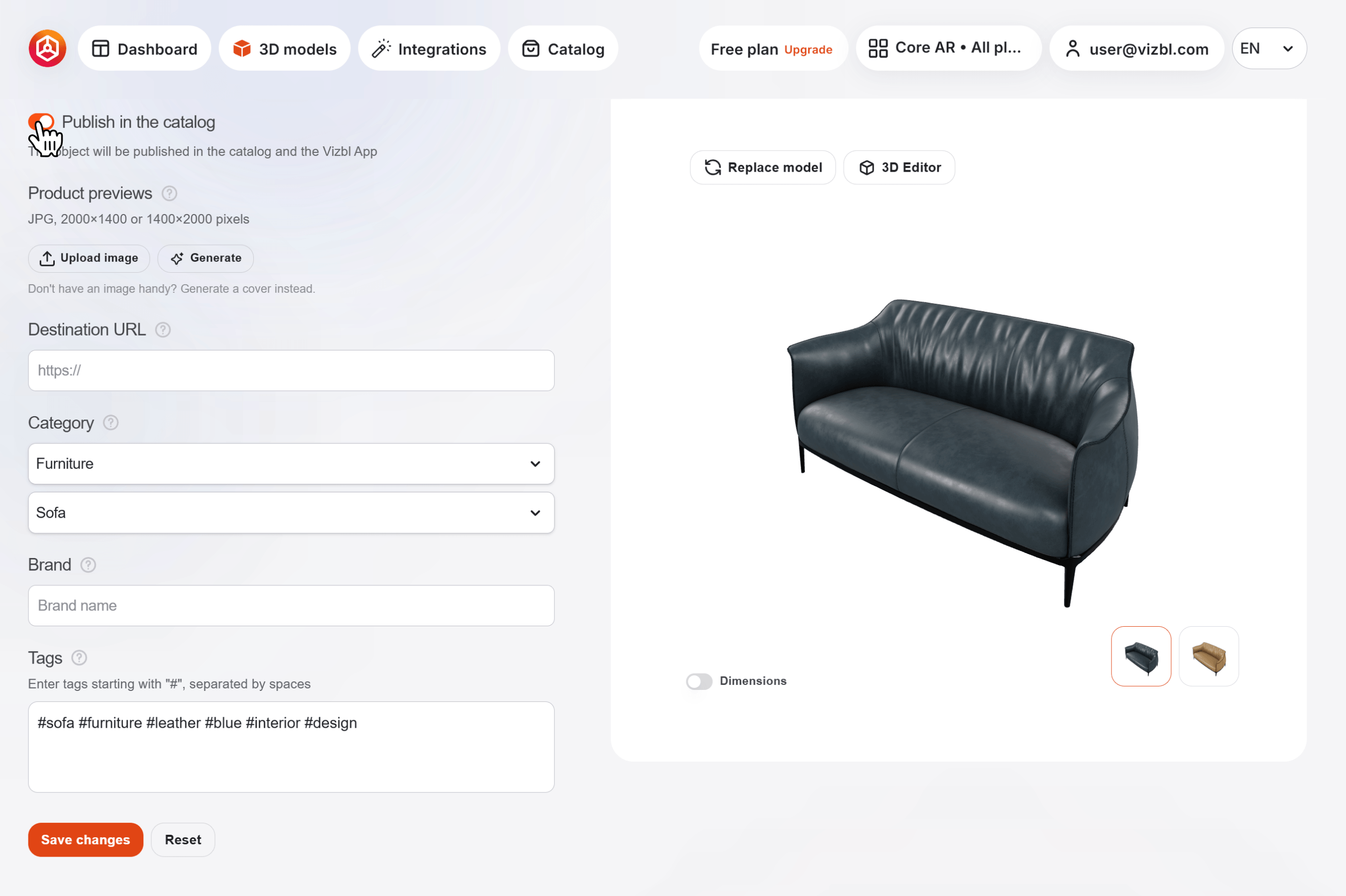
Additional fields will appear to help you set up your listing:
When you're done, click Save changes — your object will appear in the catalog right away.
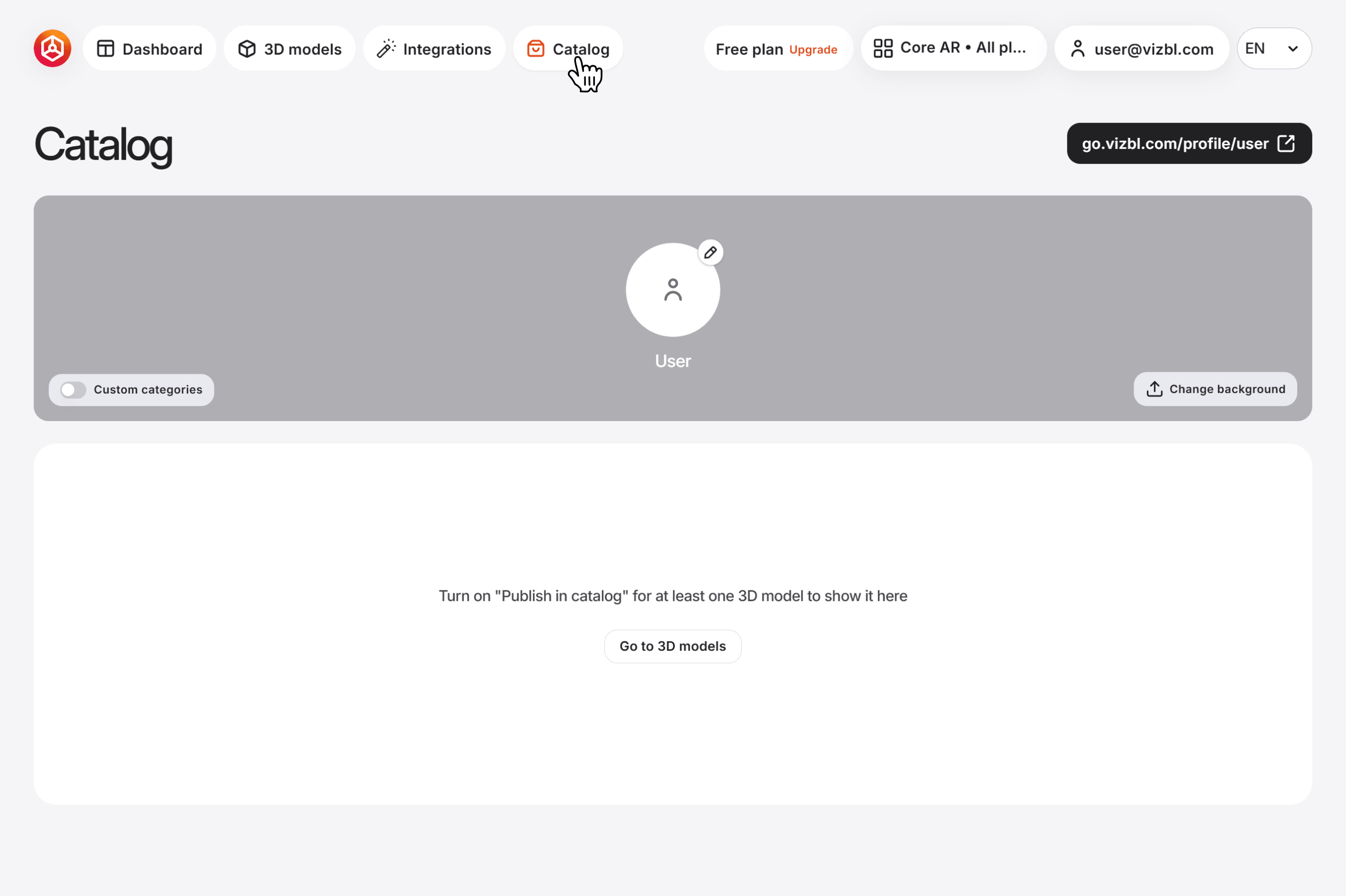
Click Catalog in the top navigation bar. Here you can upload a profile picture and a background image, and see all your published objects in one place.
In the top-right corner you'll find a link to your public profile — copy it and share it with anyone via messenger or email.