
Linking Shopify products to 3D models
How to link your Shopify products and their variants to models from your Core AR library.
To show the Vizbl button on a product page, link the product to a 3D model from your library. You can link products and check which ones are already linked in your Core AR dashboard.
Before you start, make sure that:
- your store is connected to Vizbl with the Vizbl 3D & AR Connector;
- the 3D model you want to use is uploaded to your Core AR library.
Connecting the Vizbl 3D & AR Connector
Uploading a 3D model to Core AR
The button only appears on a product page if you’ve added the Vizbl Button block to your theme and your connector subscription is active.
Adding a custom AR button to your Shopify theme
Where to set up links
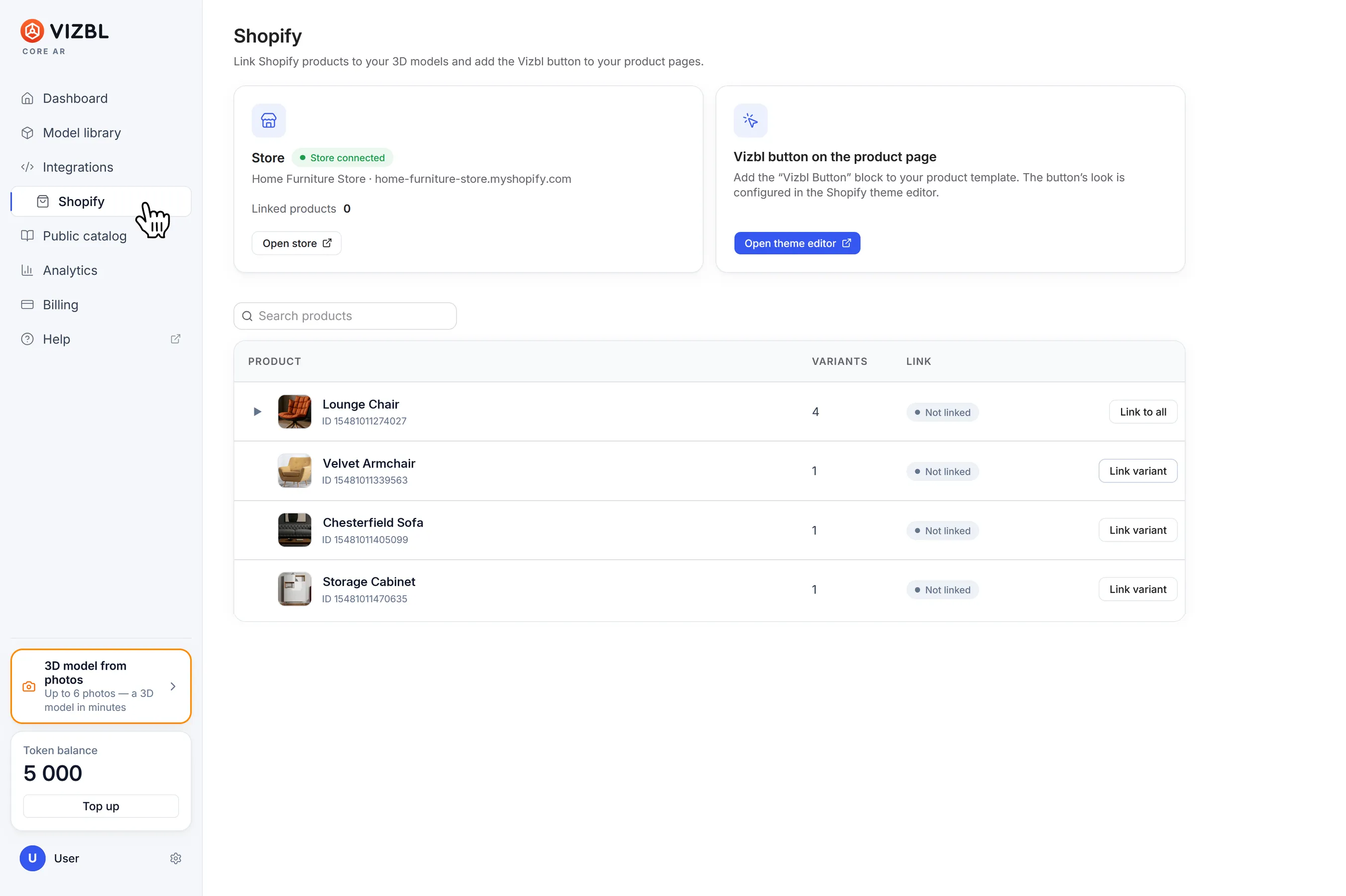
1. Open your Core AR dashboard and go to Integrations → Shopify in the left-hand menu.
2. You’ll see a list of all the products in your store, each with its number of variants and its status:
- Not linked — no model is linked yet, so the button doesn’t show up on the product page;
- Linked — a model is linked, and the button works.
To find a product by name, use the Search products field.
Linking a product to a model
1. Next to the product, click Link variant. If the product has multiple variants, the button says Link to all instead, and the model is linked to every variant at once.
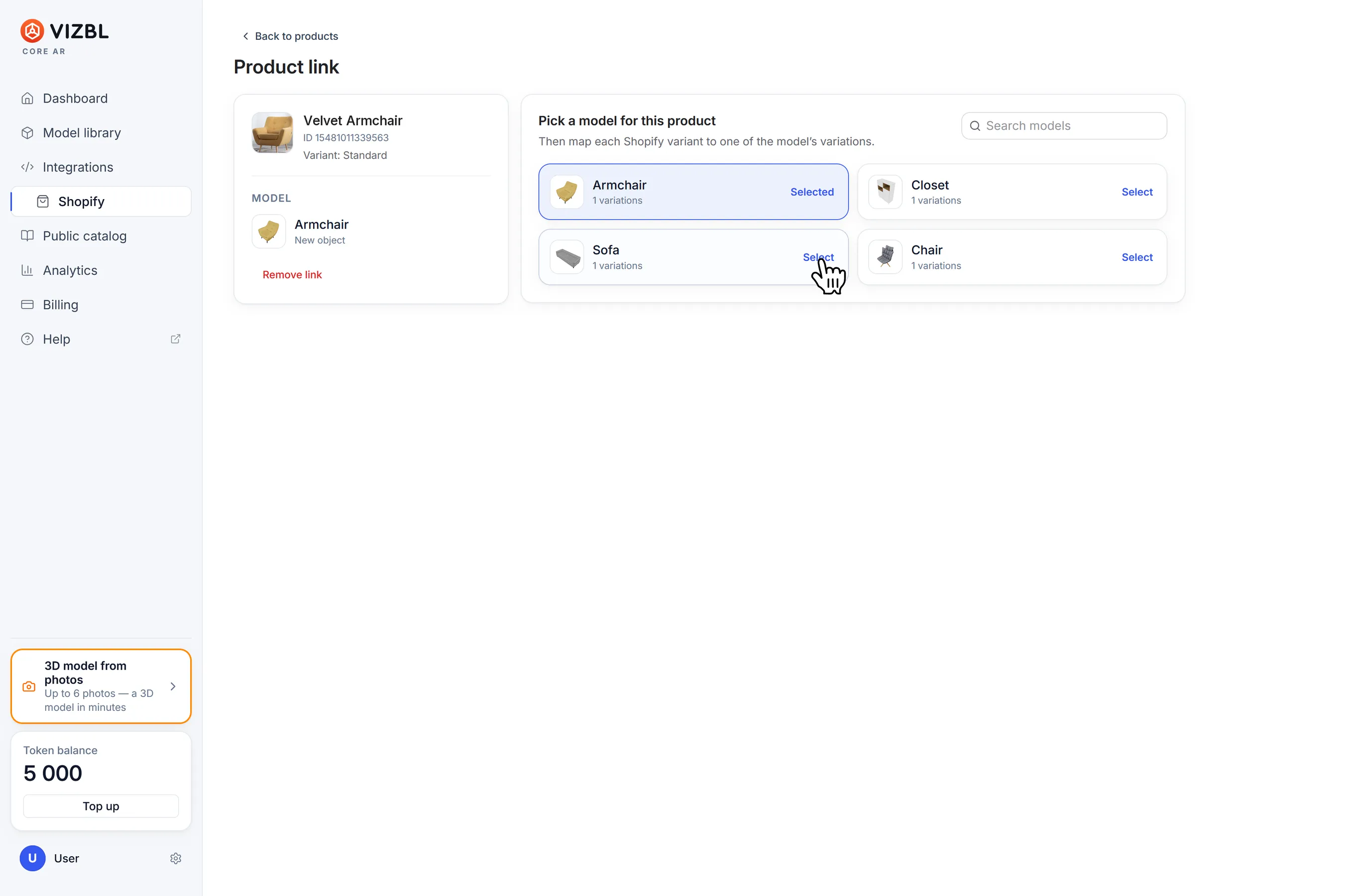
2. On the Product link screen, you’ll see the models from your library on the right. Find the one you need and click Select.
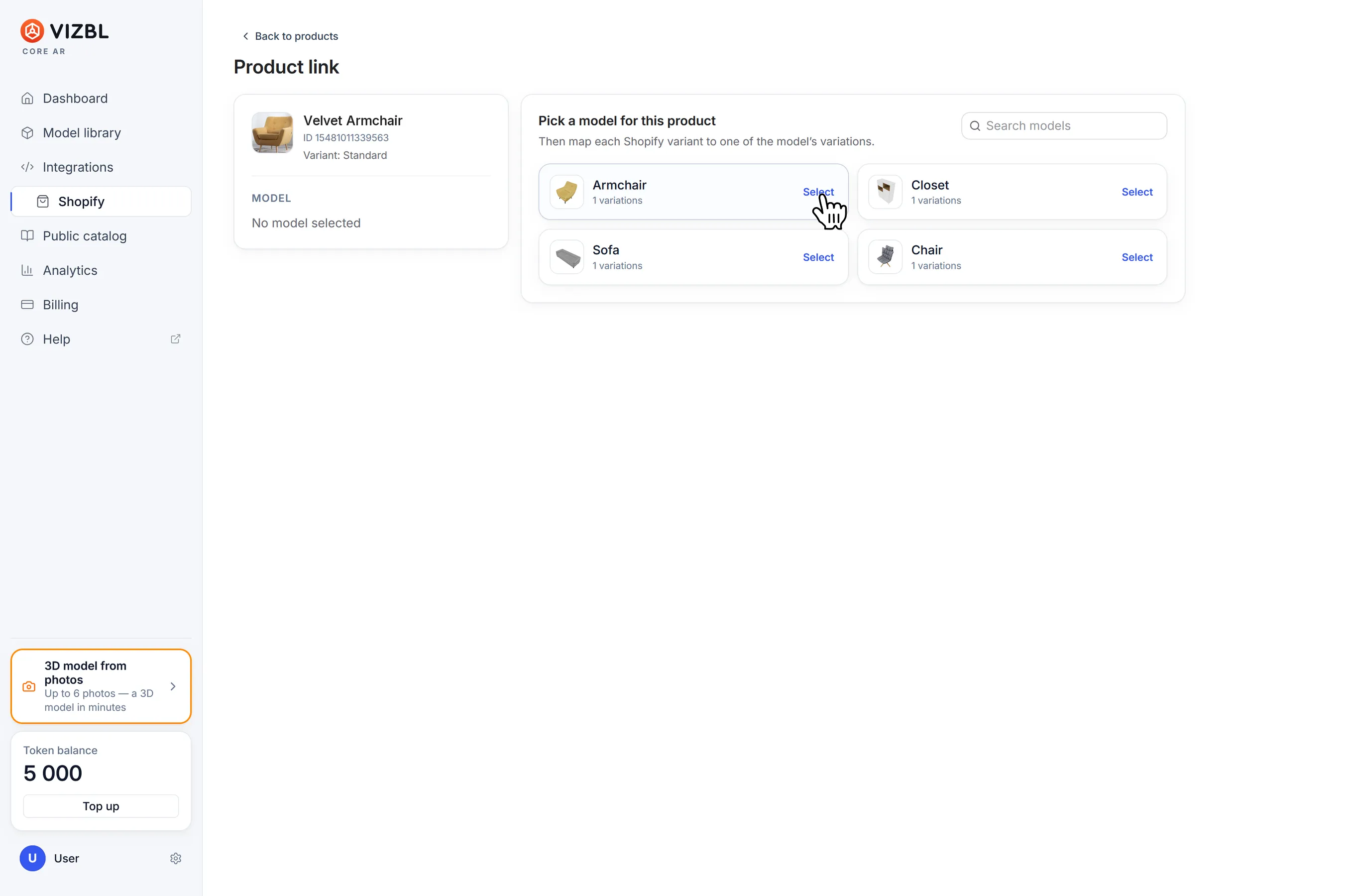
3. If the model has variants of its own, a list of them appears. Click the one you want to use.
4. You’re taken back to the product list, and the product’s status changes to Linked. Your changes are saved automatically.
To change or remove a link, click Change link next to the product. On the screen that opens, pick another model or click Remove link.
If you’ve already added the button to your product page, it starts working as soon as the product is linked. To check it, hover over the product name in the list and click the external link icon  next to it. The product page opens in a new tab.
Linking variants to different models
This works the same way as linking an entire product.
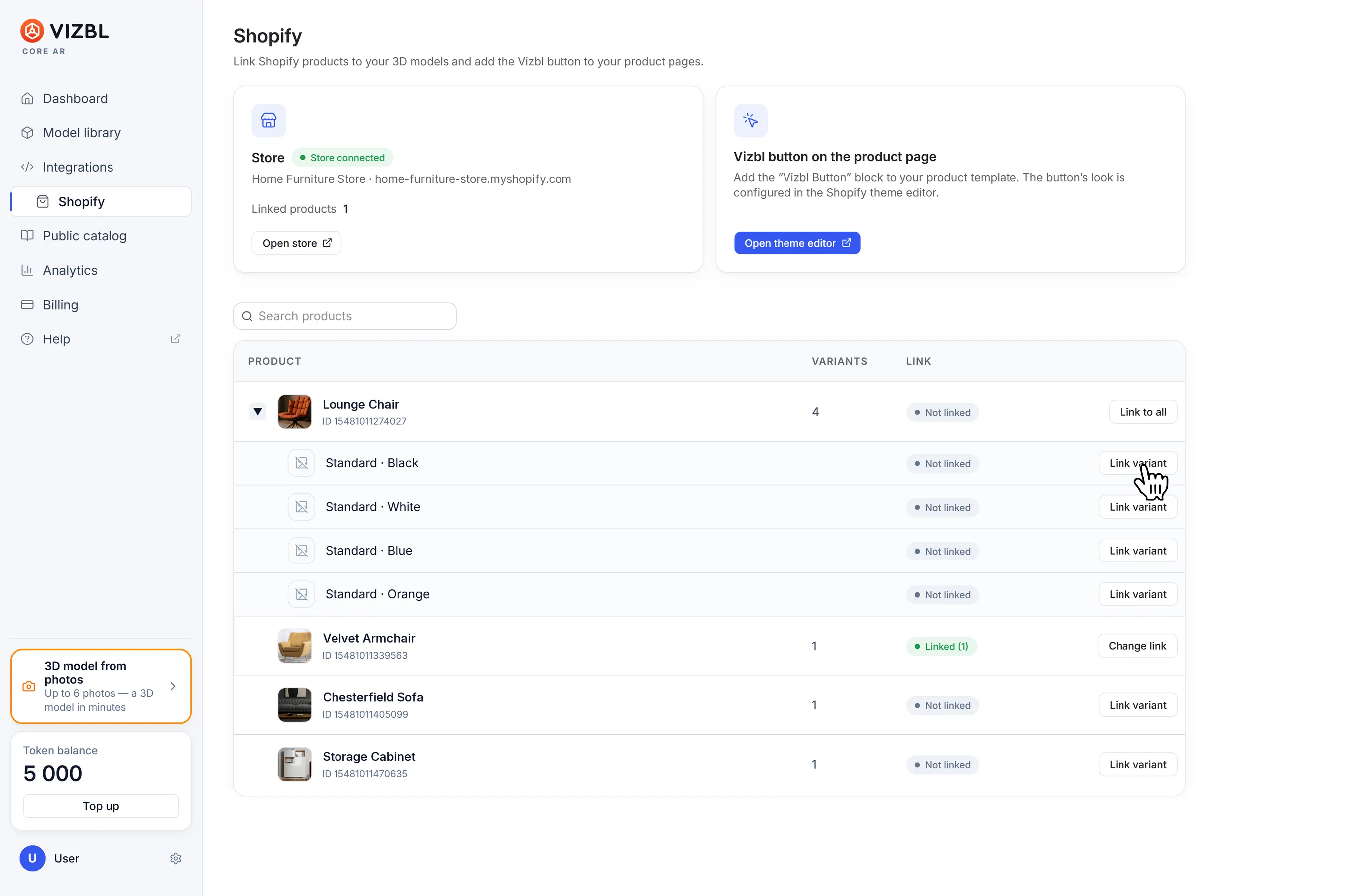
1. Click the arrow to the left of the product to see its variants.
2. Next to a variant, click Link variant, then choose a model just as you would for a product.
3. Repeat for each variant you want to link.
Get help in our Discord
Join our Discord to ask questions about these instructions or get technical support. If something isn’t working, open a ticket and our team will investigate.