
How to Create and Edit Object Collections
Learn how to create, edit, and manage object collections
You can add Premium objects from your Vizbl catalog to collections.
This guide explains how to create, edit, and manage objects within those collections.
Creating a Collection
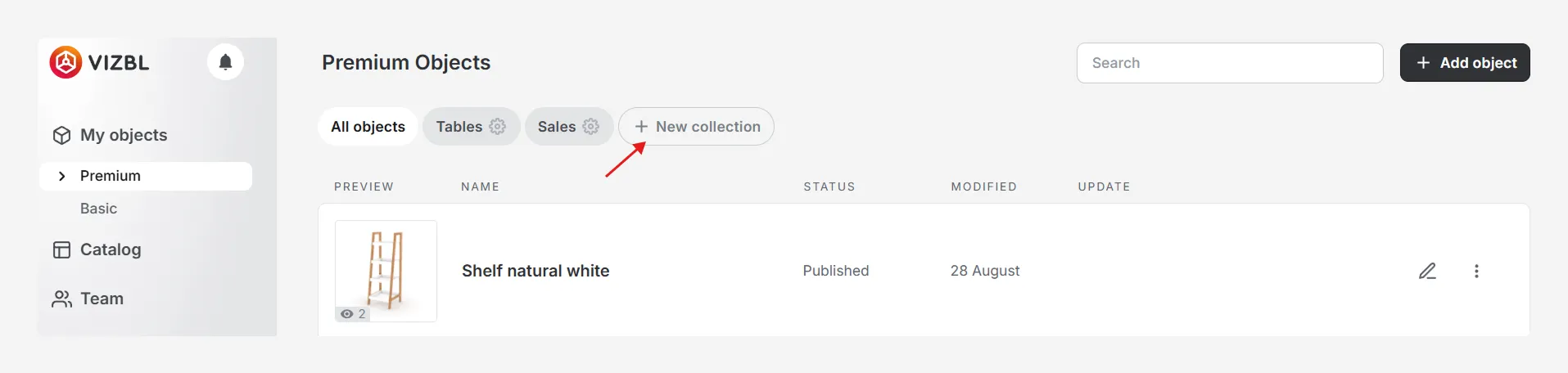
In your Vizbl account at vizbl.com/apps, go to My objects page and click New collection.
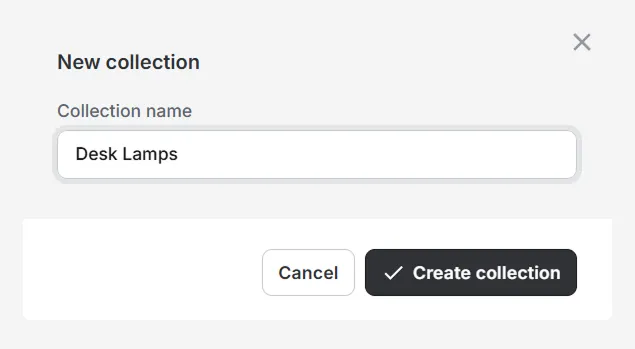
Enter a name for your collection (e.g., Desk Lamps) and click Create collection.
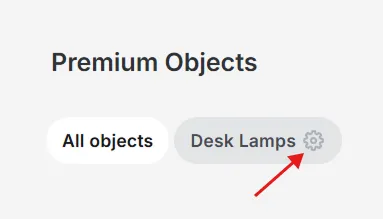
Once created, the collection name will appear next to the All objects button.
Editing a Collection
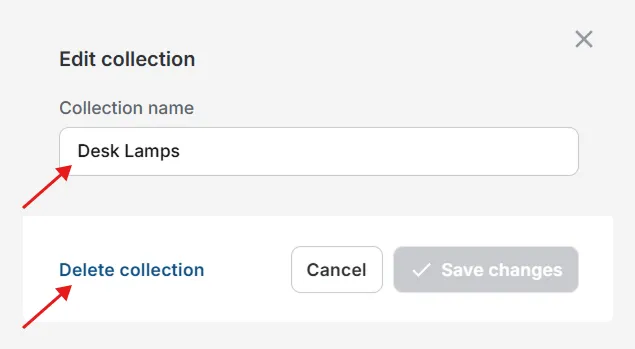
Click the gear icon next to the collection name.
You can rename or delete the collection in this window.
Adding Object to a Collection
In the Premium objects section, find the object to add.

Hover over the object card to display the Add to collection button, then click it. In the pop-up window, choose a collection and click Select.
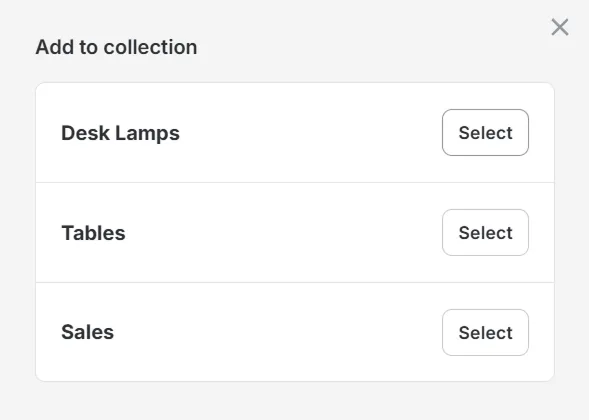
The object will be added to the selected collection. To view all objects in that collection, click the collection name next to the All objects button.
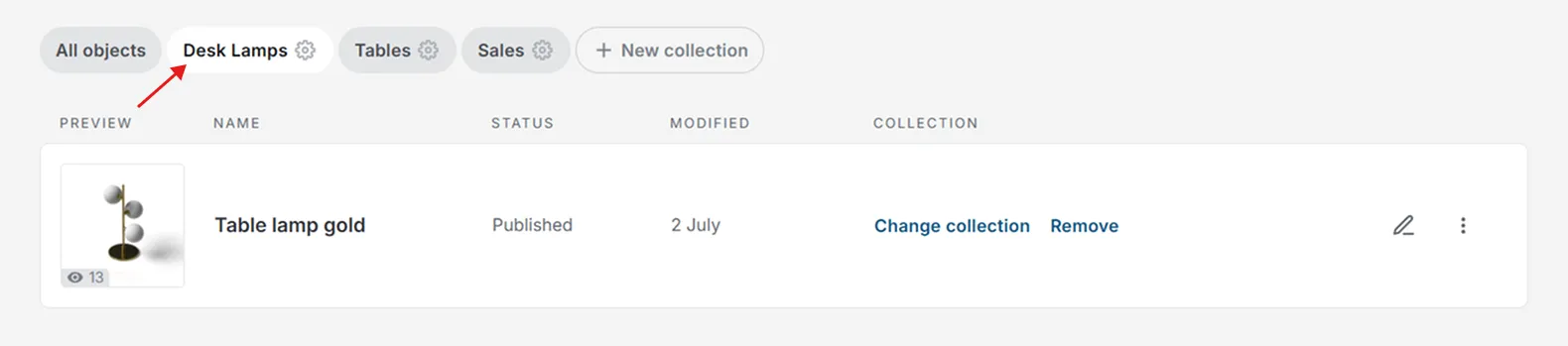
Transferring an Object to Another Collection
Open the collection and select the object to move. Click Change collection next to the object name.
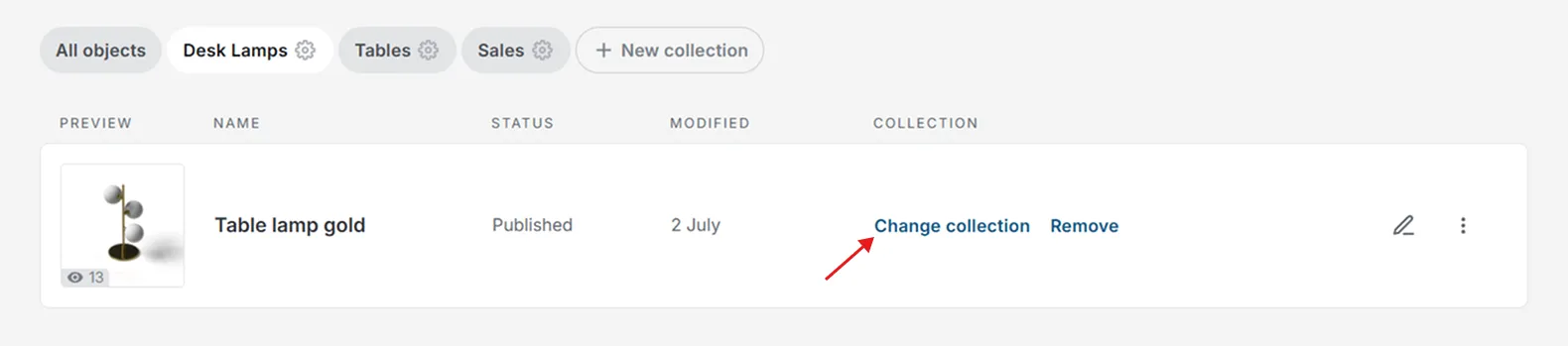
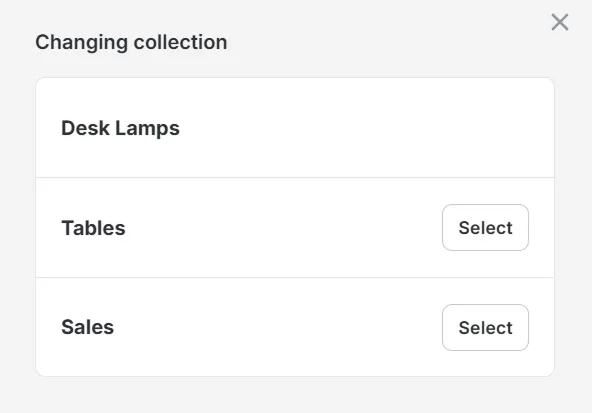
Choose the new collection and click Select.
Removing an Object from a Collection
Open the collection and find the object to remove. Click Remove.
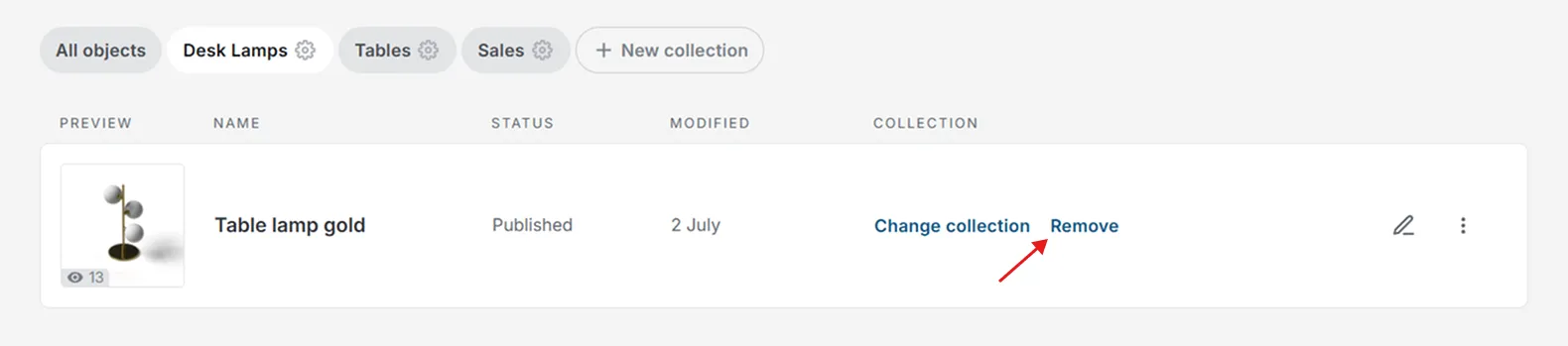
The object will be removed from the collection but will remain available in My objects.