
How to Create a Custom Category for Objects
Learn how to create custom categories for objects in your catalog
Categories (like Furniture, Décor, or Appliances) help organize your catalog. Each object can belong to multiple categories.
By default, the catalog uses the standard categories assigned during upload, but you can also create custom ones.
Creating a Custom Category
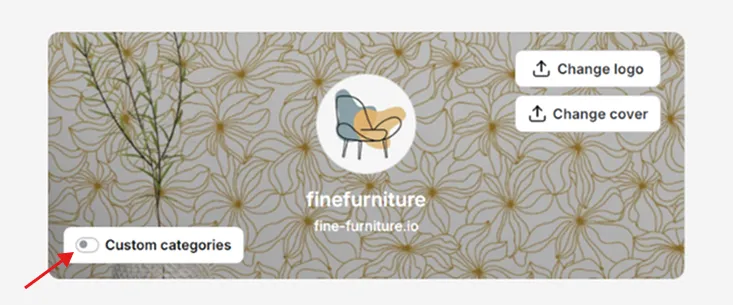
In your Vizbl account at vizbl.com/apps, open the Catalog page and turn on the Custom categories toggle.
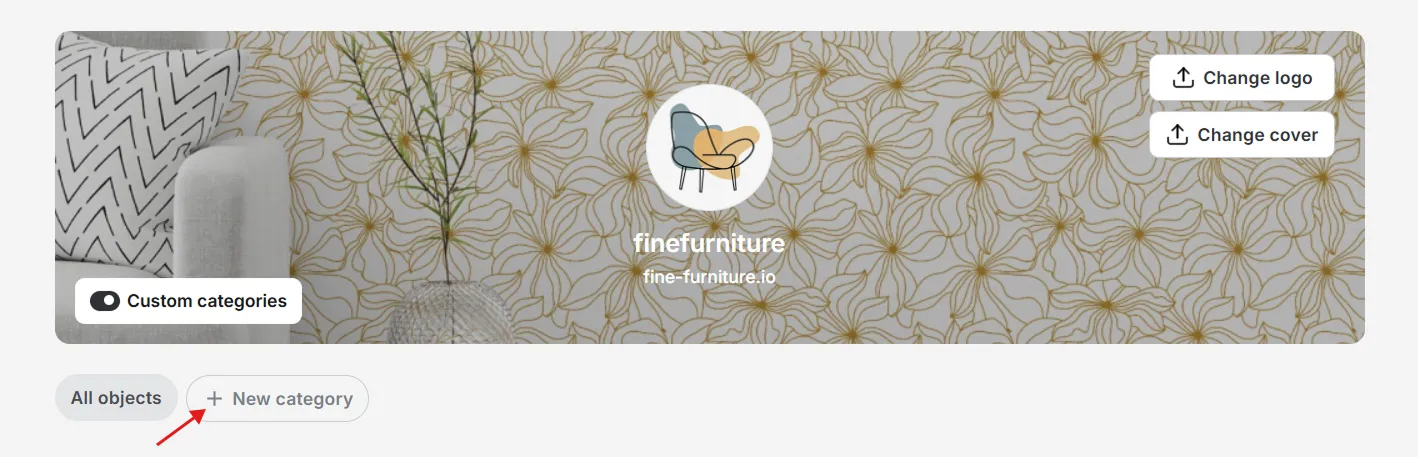
Next to the All objects button, click New category.
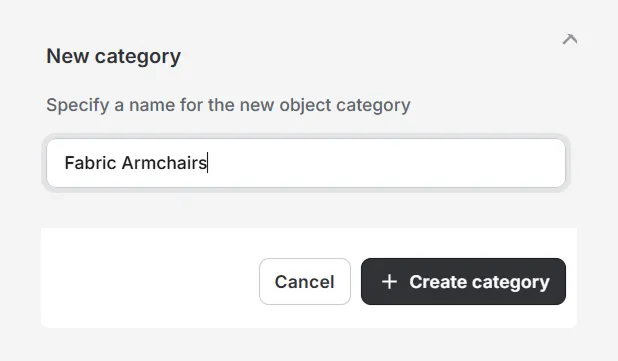
Enter a category name (for example, Fabric Armchairs) and click Create category.
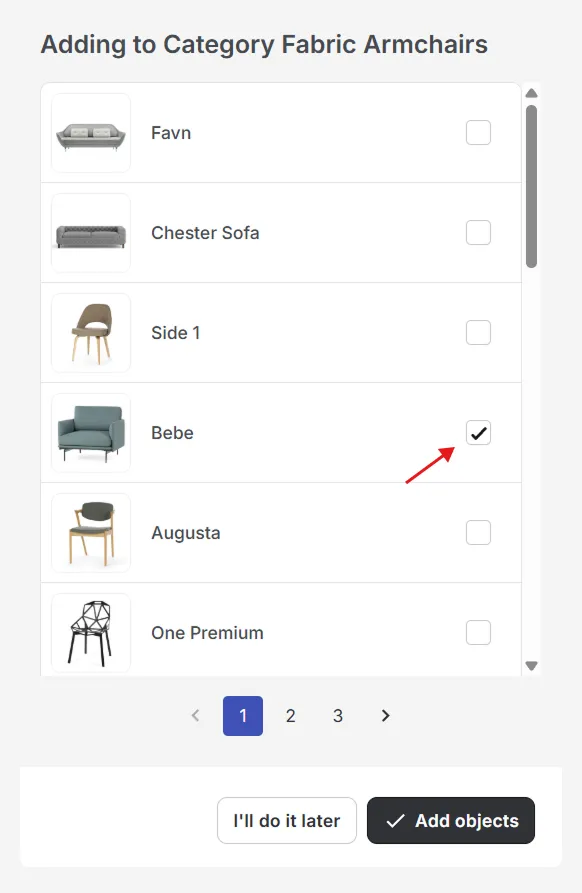
Click to select objects to include, then choose Add objects. To add them later, click I’ll do it later.
Adding Objects to a Custom Category
Click the gear icon next to the category name.

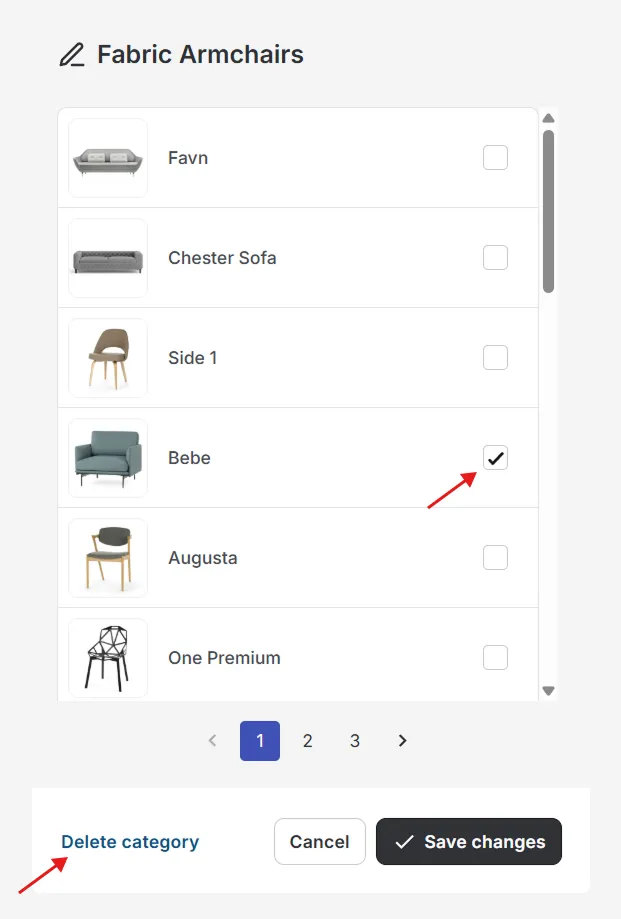
Select objects and click Save Changes. You can also rename or delete the category in this window.
Removing an Object from a Custom Category
Click the gear icon next to the category name. Uncheck the box next to the object that should be removed.
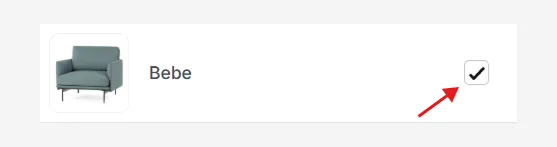
Click Save Changes. The object will remain in My Objects but will be removed from that custom category.