
Installing a 3D Viewer in a modal window
In this article, you will learn how to add a 3D viewer to your website in two easy steps.
To install a 3D viewer with an object upoaded in the Vizbl platform, you need to follow two simple steps. Before you begin, ensure that you have already uploaded at least one object to Vizbl.
Copy data from the Object Card
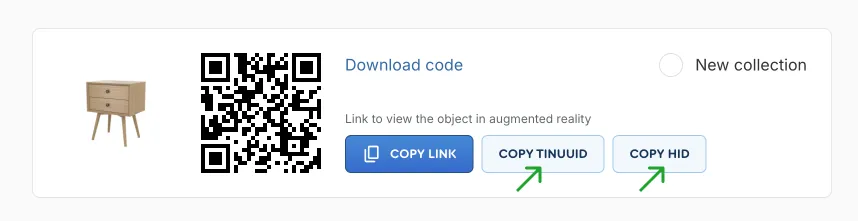
Open the list of your uploaded objects on vizbl.com/apps. Select the object you want to display in the 3D viewer. Copy the TINUUID and HID parameters; you will need them in the next step.
Add code to Your Site
Add the lines below to your web page code.
Add the following attributes to the element that will open the 3D view when clicked:
- class = /arbitrary class/ (e.g. “vizbl_3d_view”)
- data-object-tinuuid = /tinuuid of object/
- data-object-hid = /hid of collection/ (optional)
Example
The TINUUID parameter specifies the object, while the HID parameter determines the color variant. By modifying these parameters, you can display any of the uploaded objects in your desired color.
An example of a basic html file: