
How to add a new object color
Learn how to upload new variations or update existing ones
There are two ways to upload an object to the Vizbl platform:
- As a single file containing both the model and textures,
- By uploading the model and textures separately.
You can add color options to an object only when the model and textures are uploaded separately.
Read our full guide on upload types and and when to use each method.
Adding a color when uploading an object
Log in to your vizbl.com/apps. On My Objects page, click Add Object in the top right corner.
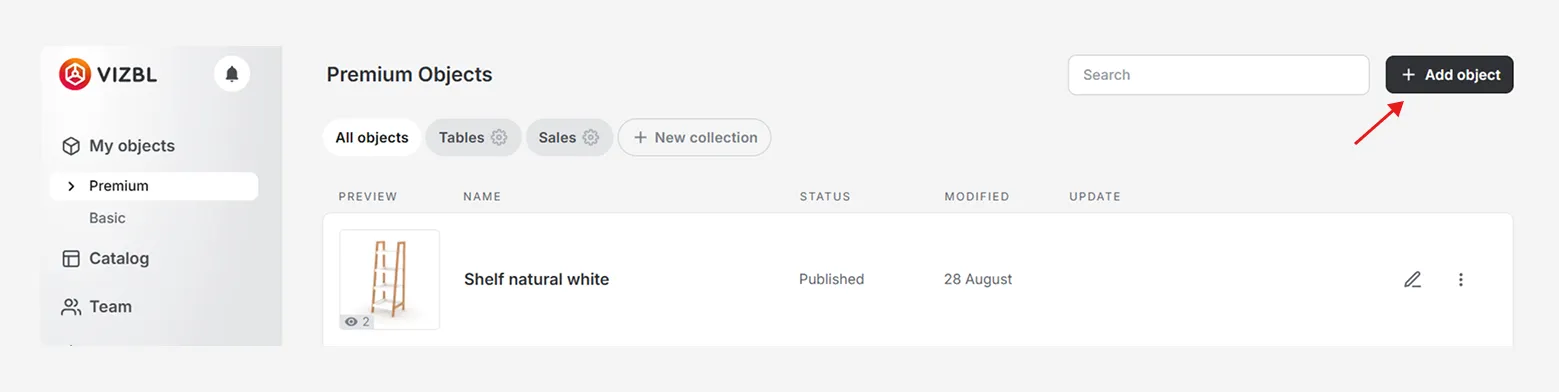
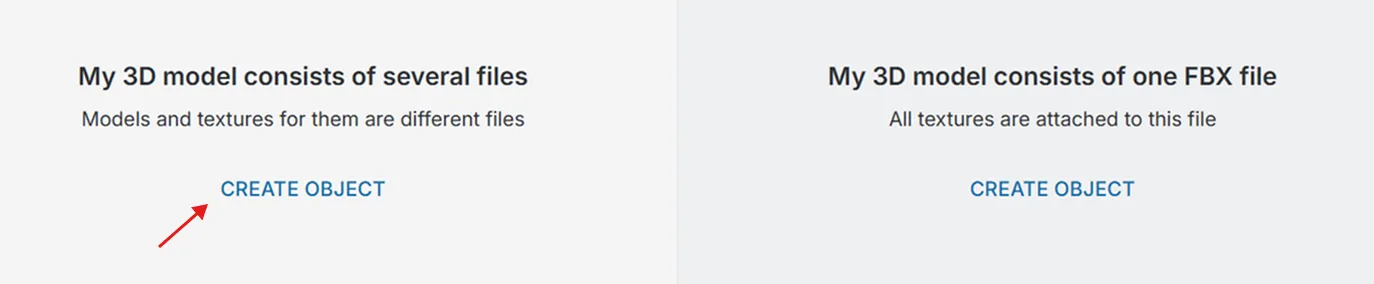
The object creation window will open. On the left, select My 3D model consists of several files, then click Create Object.
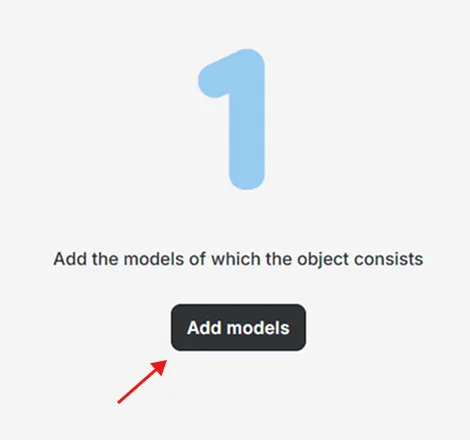
On the next page, click Add Models.
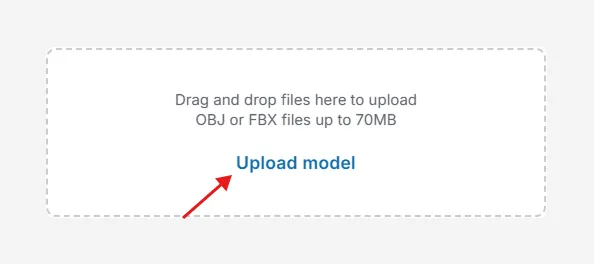
In the new window, click Upload Models button and upload all the FBX or OBJ files that make up the object. Then click Save Changes.
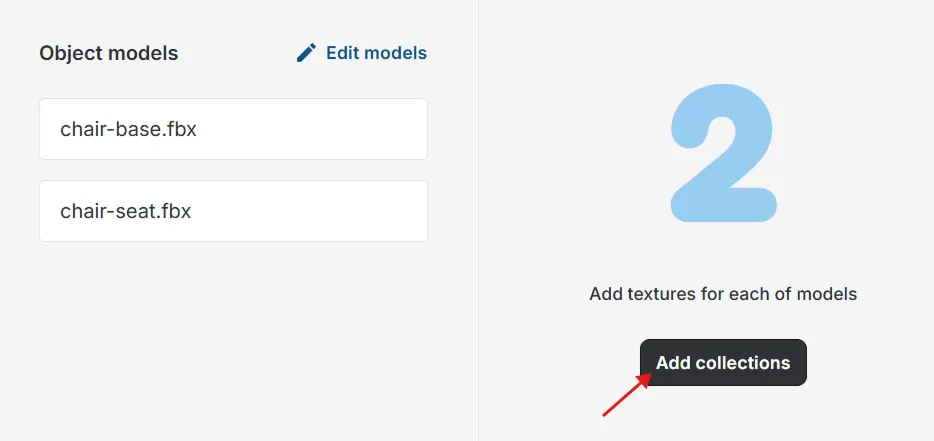
Next, click Add Collections to upload textures for each model.
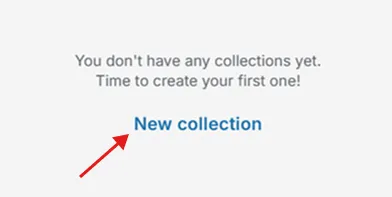
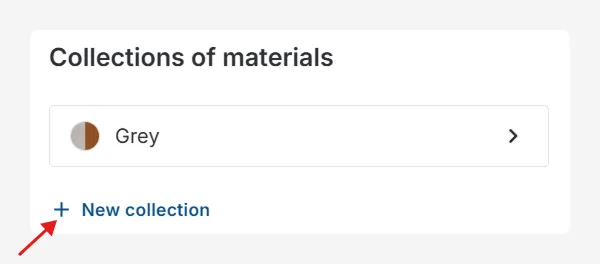
The collections window will appear. Click New Collection.
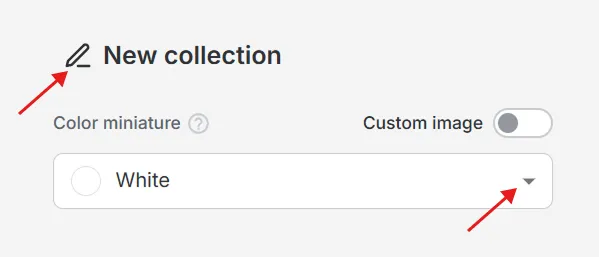
Name the collection. In the Color Miniature section, open the dropdown menu and choose a color for the object. This miniature appears in the color selection menu.
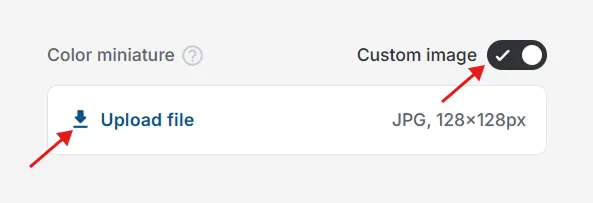
If the object uses a custom color, enable Custom Image, click Upload File, and select a JPG swatch.
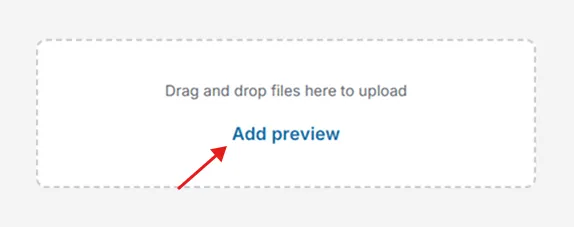
Upload at least one preview image, which will appear in the catalog and on the object page.Click Add preview and upload a JPG file.
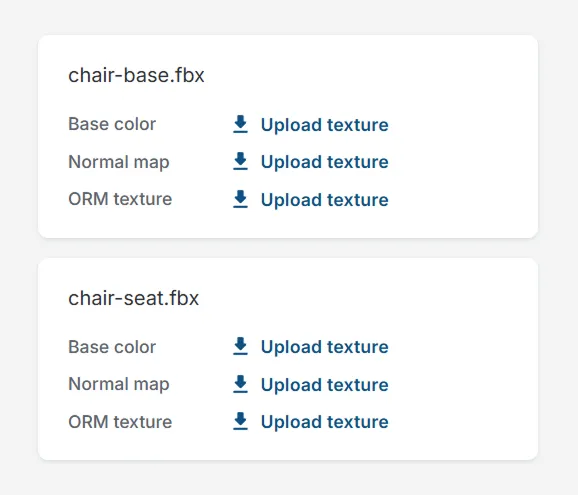
Add a set of three textures for each of the models: base color, normal map, and ORM texture. Click Save Changes.
To add another color, click New Collection and repeat the steps described above.
Your subscription plan determines how many colors you can add to an object. Objects with multiple colors are still counted as one object.
Adding a color to an existing object
Log in to your vizbl.com/apps. Go to My Objects and click the edit (pencil) icon for the object you want to update.

Click Edit Collections.
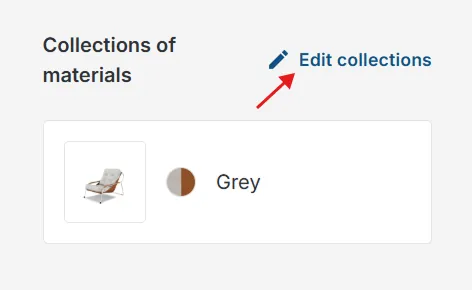
Click New Collection and repeat the steps described above.
Example of object presented in multiple colors
.vizbl-buttons { display: flex; justify-content: flex-start; } .vizbl-btn { display: inline-block; background: #000; color: #fff; text-decoration: none; padding: 12px 16px; border-radius: 12px; font-weight: 600; line-height: 1.4; text-align: center; transition: transform 0.12s ease, opacity 0.12s ease; } .vizbl-btn:hover { opacity: 0.9; transform: translateY(-1px); } .vizbl-btn:active { transform: translateY(0); opacity: 0.85; }