What Is a Catalog and How to Customize It
Learn how to customize the appearance of your catalog
The catalog is a page that displays all the objects you’ve uploaded to the Vizbl platform. Each catalog is created automatically.
Users can view your page in the Vizbl Mobile App or on the Vizbl Website.
Customizing Your Catalog
In your Vizbl account at vizbl.com/apps, go to the Catalog page. This is where you can adjust your catalog’s appearance and settings.
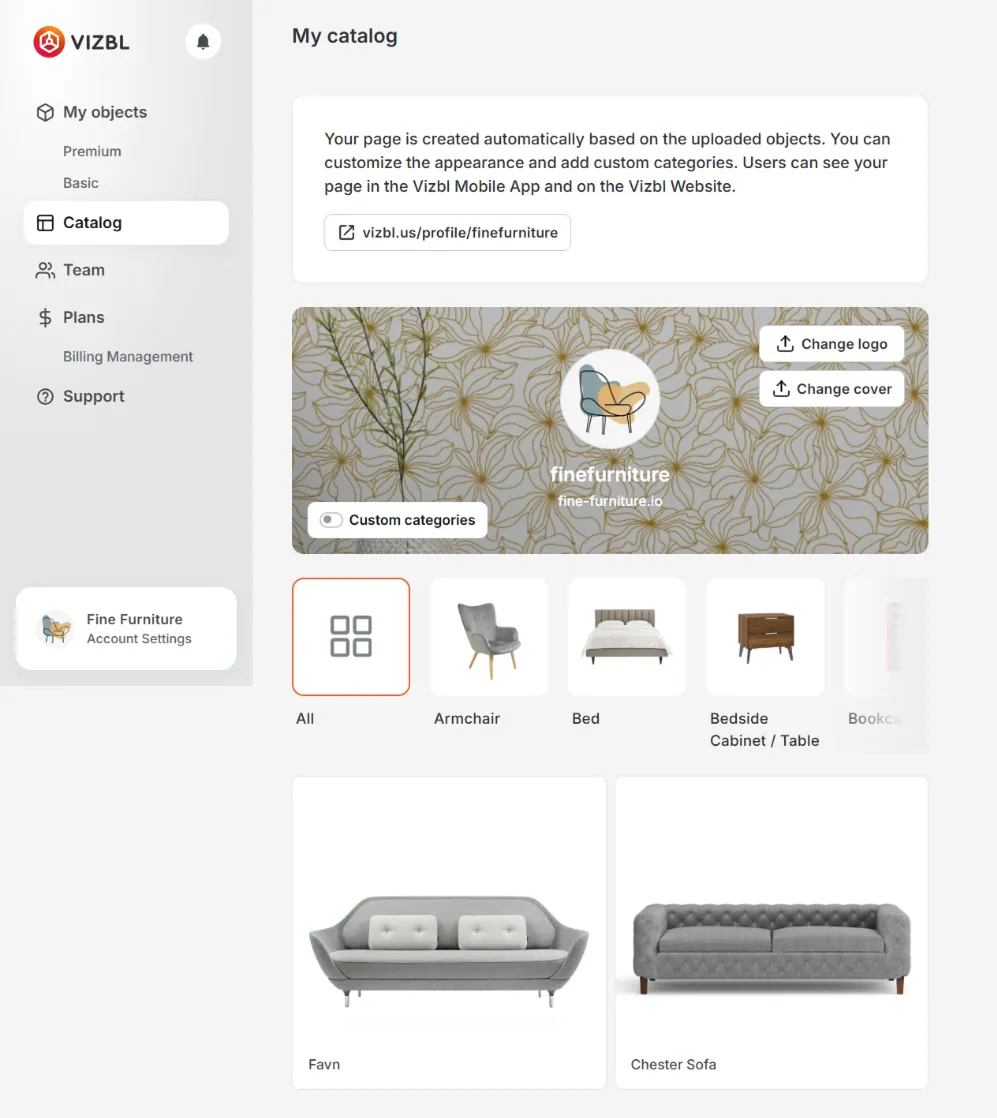
You can add a background and logo to personalize your catalog:
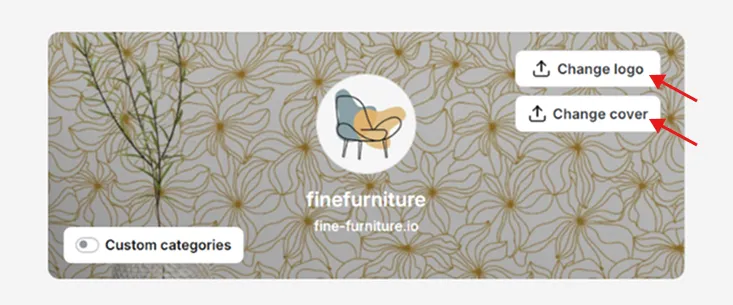
- Click Change Logo or Change Cover.
- Select Upload File and choose an image (JPG or PNG, up to 4 MB).
- Save your changes.
If you need to replace the background or logo image:
- Click Change Logo or Change Cover.
- Delete the file.
- Upload a new file and save your changes.
To see how your catalog appears to users, go to vizbl.com/profile/your_username (replace your_username with the one you created during registration).
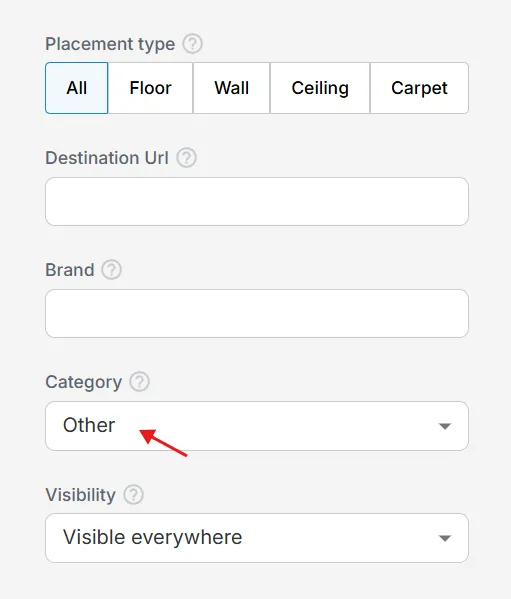
Within the catalog, users can view all items or filter them by category (for example, Furniture, Décor, or Appliances).
By default, categories are assigned when you upload an object. You can also add custom categories later to better organize your catalog.